
Overview
The Spur Context API returns IP context for a single IPv4 or IPv6 address: whether it's anonymous, which VPN or proxy services and tunnels use it, the infrastructure behind it, and where it's located. You query it over REST with an API token.
Base URL: https://api.spur.us
Quick Start
- In the Spur app, open Settings → API and copy a token (see Get a token).
- Save it as an environment variable:
export SPUR_TOKEN=<your token>
- Look up an IP address:
curl -H "Token: $SPUR_TOKEN" "https://api.spur.us/v2/context/89.39.106.191"
{"as": {"number": 49981,"organization": "WorldStream"},"client": {"behaviors": ["FILE_SHARING", "TOR_PROXY_USER"],"concentration": {"city": "Polāia Kalān","country": "IN","density": 0.2675,"geohash": "tsn","skew": 6762,"state": "Madhya Pradesh"},"count": 4,"countries": 2,"proxies": ["ABCPROXY_PROXY", "9PROXY_PROXY", "NETNUT_PROXY", "GOPROXY_PROXY"],"spread": 4724209,"types": ["MOBILE", "DESKTOP"]},"infrastructure": "DATACENTER","ip": "89.39.106.191","location": {"city": "Amsterdam","country": "NL","state": "North Holland"},"organization": "WorldStream B.V.","risks": ["CALLBACK_PROXY", "TUNNEL", "GEO_MISMATCH"],"services": ["OPENVPN"],"tunnels": [{"anonymous": true,"entries": ["89.39.106.82"],"operator": "PROTON_VPN","type": "VPN"}]}
The response is an IP Context Object.
Authentication
Every request needs your API token in a Token header:
-H "Token: $SPUR_TOKEN"
Keep tokens on the server. Don't put them in browser code, mobile apps or public repositories, because anyone with the token can spend your queries.
If a request fails, check the code against Response Codes. A 401 usually means the token is wrong, or it doesn't have the permission that endpoint needs, for example a token with only a data feed permission.
Endpoints
| Endpoint | What it returns |
|---|---|
GET /v2/context/:ip | The IP Context Object for an address, as of now |
GET /v2/context/:ip?dt=YYYYmmdd | The same, for a past date. Pro plans and above, with a token that has the Context API Historical Query permission (see Create a token). |
GET /v2/metadata/tags/:tag | Metadata for a service tag, such as OXYLABS_PROXY |
GET /status | Your token's status, queries remaining and service tier. Needs the Context API permission. |
Full request and response details are on Endpoints.
Checking your remaining queries
Each Context API response includes an x-balance-remaining header with the number of queries this token can still make: your account's remaining queries for the billing period, or the token's Limit if that's lower.
GET /status returns the same number as queriesRemaining, and checking it doesn't use a query.
For usage charts, when your quota resets, and what happens if you run out, search the Knowledgebase.
Get a token
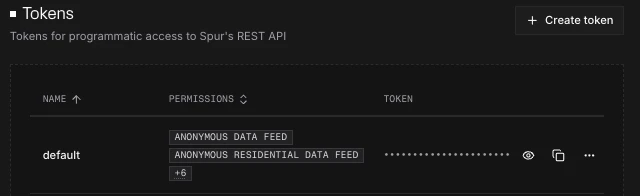
Tokens live in the Spur app under Settings → API, in the Tokens table. Each row shows the token's Name, its Permissions, and the Token itself. Select Show token to reveal it, or Copy token to copy it.
Who can see tokens:
- Admins can see and manage tokens.
- Developers can see and copy tokens, but can't change them.
- Members can't see tokens. The API page shows You don't have permission to view API tokens. Ask an admin in your organization for a token.
If your plan doesn't include API access, the page says API access isn't available on your plan, and admins see an Upgrade plan button.
On plans without token management, your organization has one fixed token, which admins can view, copy and rotate.
Manage tokens
What you can do depends on your role and plan:
| Action | Who can do it |
|---|---|
| View and copy tokens | Admins and Developers |
| Rotate a token | Admins |
| Create, edit and delete tokens | Admins, on Team plans and above |
Create a token
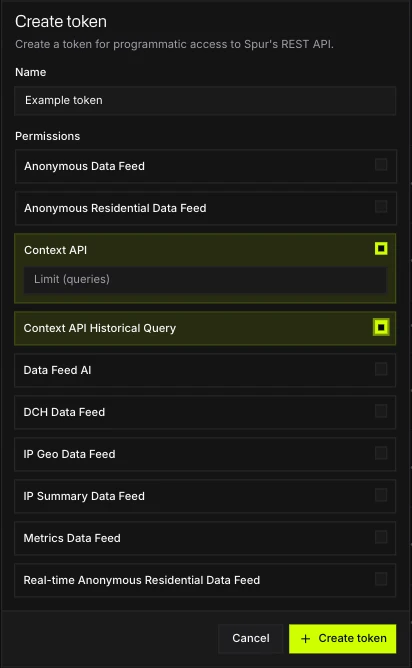
Select Create token, give it a Name, choose its Permissions, and select Create token.
Permissions control which Spur products the token can use. You can only choose products your plan includes, for example:
- Context API, and Context API Historical Query for lookups on past dates (
?dt=) - Data feeds, such as Anonymous Data Feed, Anonymous Residential Data Feed or IP Geo Data Feed
For metered products such as the Context API, you can also set an optional Limit on how many queries the token can use. Leave it empty, or set it to 0, for no per-token limit.
Use separate tokens for separate systems, such as one per SIEM or application, so you can rotate or delete one without affecting the others.
Edit a token
Open the token's More options menu and choose Edit to change its name, permissions or limits. Select Save.
Rotate a token
Rotating gives the token a new secret, for example if the old one may have been exposed. Open the token's More options menu, choose Rotate, then confirm with Rotate token.
The current secret stops working immediately, so update every system that uses it straight away. The token's name and permissions stay the same. Rotating also resets the token's usage against its Limit.
Delete a token
Open the token's More options menu and choose Delete. To confirm, type the token's name and select Delete token. This can't be undone, and any system still using the token will get 401 errors.
Integrations and tools
- Context API integrations, including Microsoft Sentinel
- In the app, Context API → Integration guide has worked examples with your token filled in.
- The Spur CLI looks up IPs from your terminal or scripts, and its MCP server gives AI assistants such as Claude access to Spur data.
Related
- Endpoints
- Data feeds: feeds use the same API tokens, with a data feed permission
- Knowledgebase: token and usage FAQs