
Data Feeds Quick Start
Spur data feeds deliver bulk IP context as files you load into your own environment. Download them from the Spur app, or pull them on a schedule from the feeds API.
Data feeds require the Enterprise plan. If your organization doesn't have access, the Data Feeds page describes the feeds and offers a Contact sales button.
- 1
Open Data Feeds
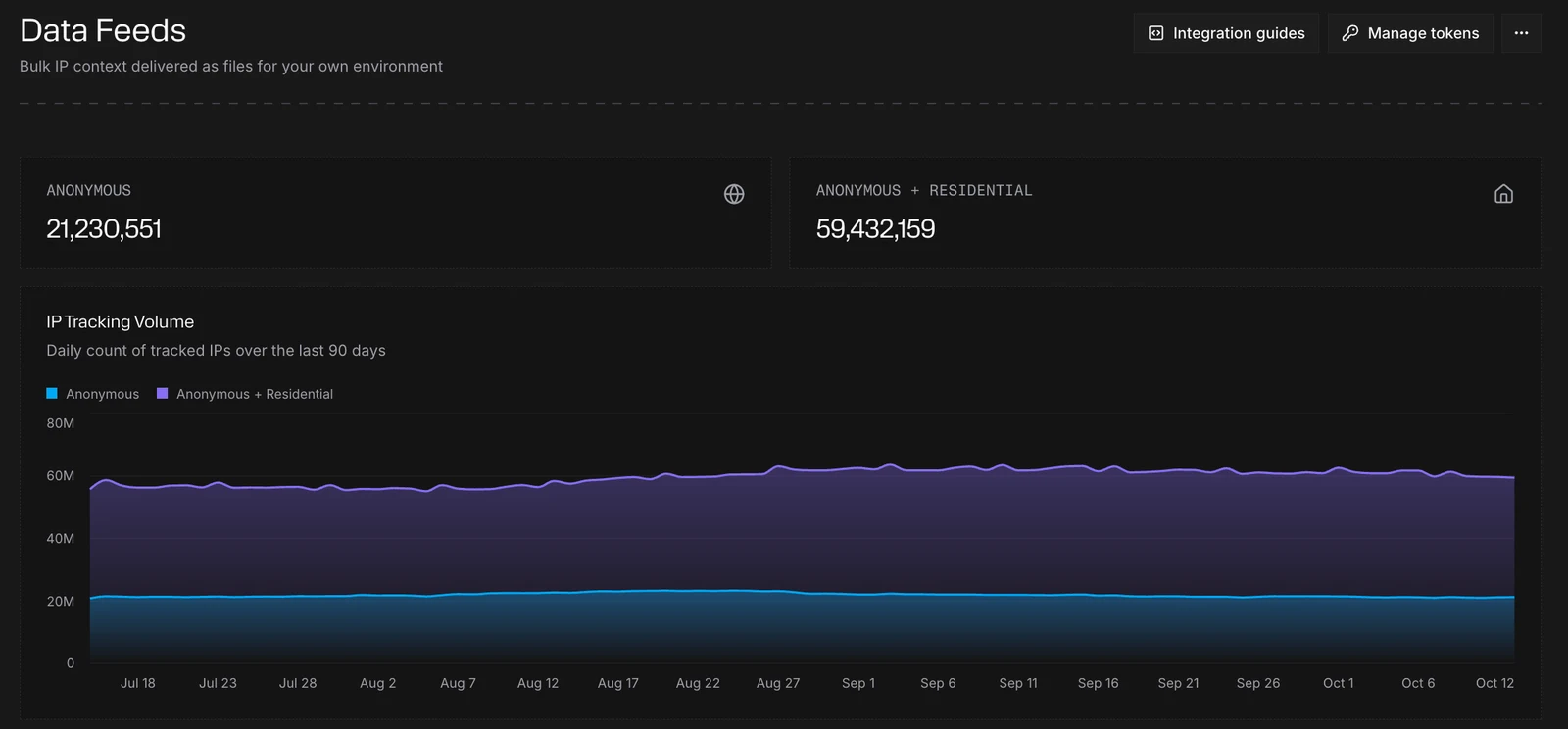
In the Spur app, open Data Feeds. The page shows:
- Anonymous and Anonymous + Residential: how many IP addresses each feed currently tracks
- IP Tracking Volume: the daily count of tracked IPs for those two feeds over the last 90 days
- Latest Files: the newest release of each feed included in your plan
- 2
Download a file from the app
In Latest Files, each row shows the feed, its formats, when it was generated and its size. Open the row's menu and choose Download JSON or Download MMDB.
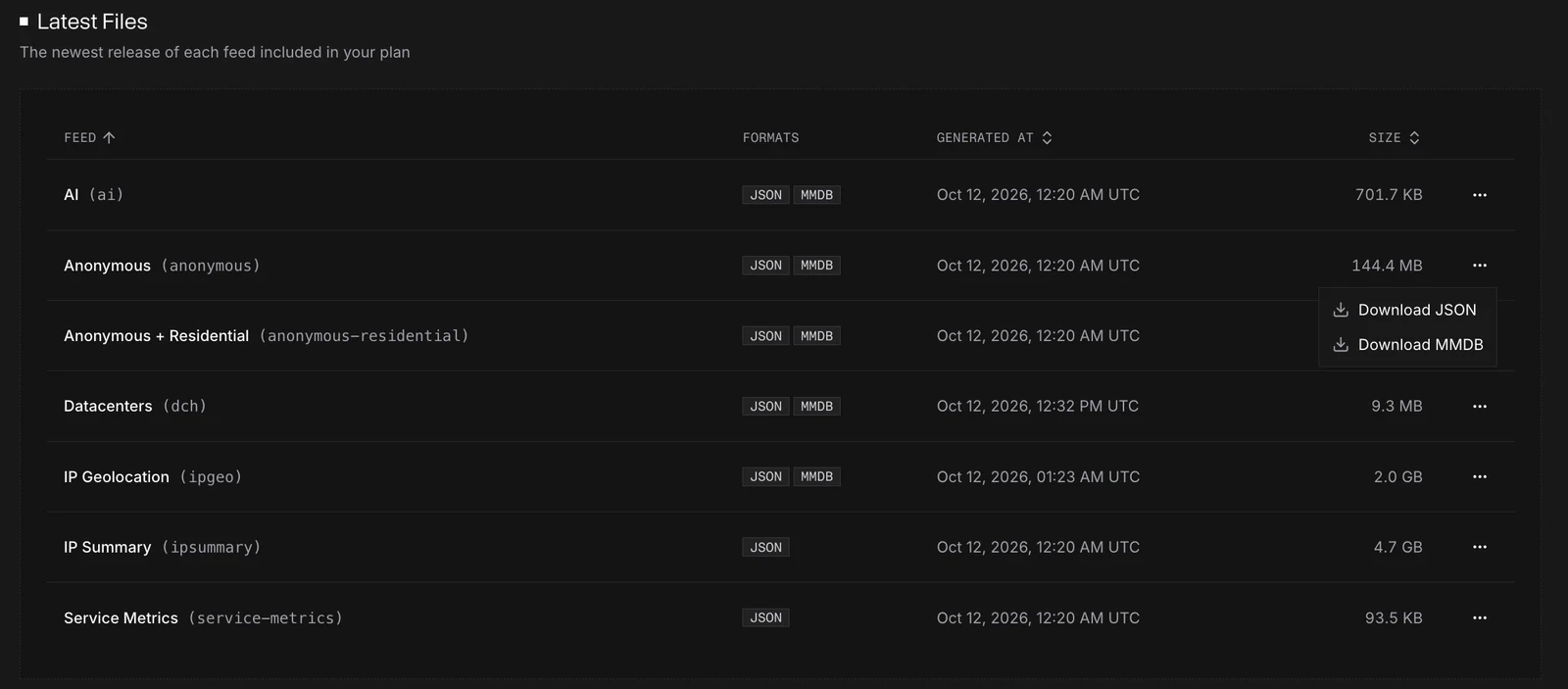
Feed Feed type (for the API) JSON MMDB AI ai✓ ✓ Anonymous anonymous✓ ✓ Anonymous + Residential anonymous-residential✓ ✓ Datacenters dch✓ ✓ IP Geolocation ipgeo✓ ✓ IP Summary ipsummary✓ Service Metrics service-metrics✓ You only see the feeds your plan includes. A format is unavailable until its first release has been generated.
- JSON files are gzipped, with one record per line. See Feed Types for each feed's contents.
- MMDB files load directly into MaxMind-compatible readers for fast local lookups.
A line from the Anonymous feed looks like this:
ndjson{"ip":"1.0.90.90","organization":"Enecom,Inc.","as":{"number":18144,"organization":"Enecom,Inc."},"client":{"count":2,"types":["MOBILE"],"behaviors":["FILE_SHARING"],"proxies":["DATAIMPULSE_PROXY","PACKETSTREAM_PROXY"]},"tunnels":[{"operator":"VPNGATE_VPN","type":"VPN","anonymous":true}],"location":{"city":"Matsue","state":"Shimane","country":"JP"},"risks":["CALLBACK_PROXY","TUNNEL"]} - 3
Get a token
Downloading with the API needs an API token, the same kind used for the Context API. The token must have permission for the feed you want, such as Anonymous Data Feed. A token with only Context API access is rejected by the feeds.
Select Manage tokens at the top of the Data Feeds page to open Settings → API. The button appears for admins and developers, the roles that can view tokens. Only an admin can create a token or add a feed permission to one, so if your organization has no feed token yet, ask an admin. See Context API: Get a token.
- 4
Pull the latest release with the API
Every feed publishes a
latestfile that redirects to its newest release, so the same command always pulls the current one. Follow redirects (-L), because files are served from the feed CDN.terminalexport SPUR_TOKEN=<your token>export FEED_TYPE=anonymouscurl -L -H "Token: ${SPUR_TOKEN}" \-o ${FEED_TYPE}-latest.json.gz \"https://feeds.spur.us/v2/${FEED_TYPE}/latest.json.gz"Set
FEED_TYPEto the feed type from the table above, such asdchfor Datacenters. Then decompress and preview it:terminalgunzip ${FEED_TYPE}-latest.json.gzhead -n 3 ${FEED_TYPE}-latest.jsonTo pull the MMDB, read its location from the feed's metadata, then download that file. This needs
jq.terminalMMDB_LOCATION=$(curl -sL -H "Token: ${SPUR_TOKEN}" \"https://feeds.spur.us/v2/${FEED_TYPE}/latest" | jq -r '.mmdb.location')curl -L -H "Token: ${SPUR_TOKEN}" \-o ${FEED_TYPE}-latest.mmdb \"https://feeds.spur.us/v2/${FEED_TYPE}/${MMDB_LOCATION}"For the metadata object, historical files by date and IPv6, see Feed Types.
Feeds update at least daily, typically by 05:00 UTC.
- 5
Load it into your tools
Select Integration guides on the Data Feeds page for worked examples. If you can view tokens and your organization has a feed token, copied commands include it. Otherwise they show a placeholder for you to replace.
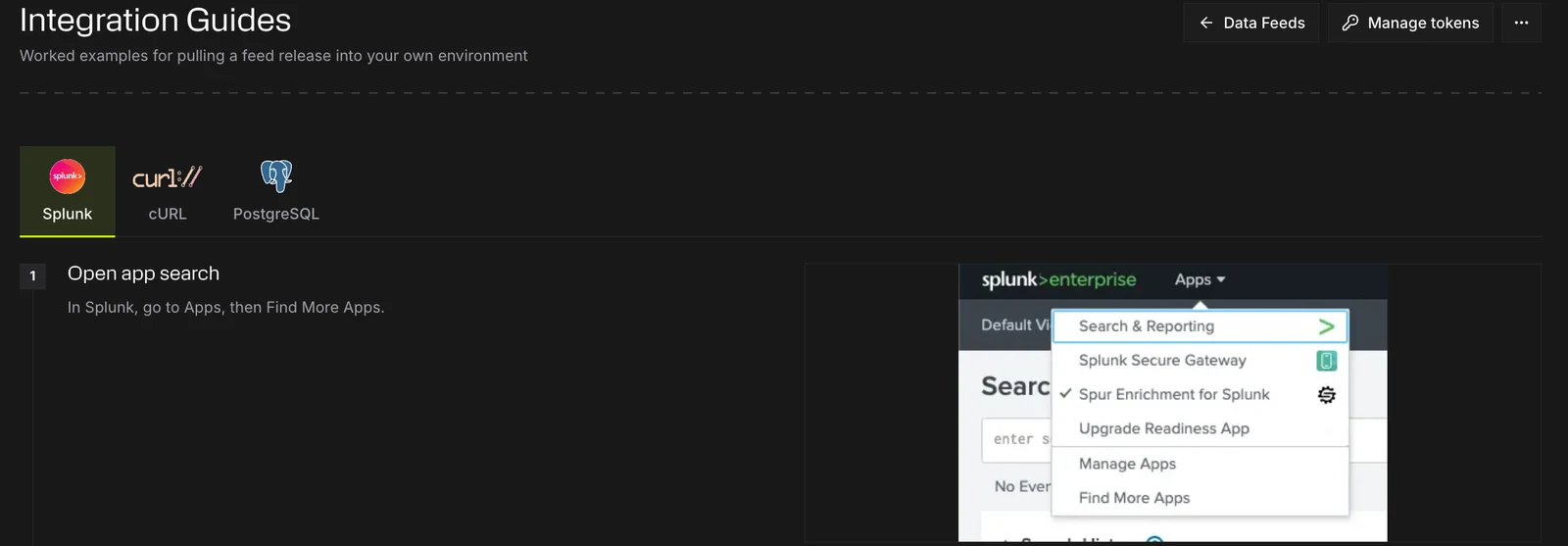
Guide What it covers Splunk Install the Spur app, add a Spur Feed data input and search the data cURL Set your environment variables and download the latest release PostgreSQL Run the example repository to load feeds into Postgres
Related
- Feed Types, including the Anonymous + Residential Realtime feed (5-minute windows)
- Exports API, for filtered CSV or JSON exports of the Anonymous and Anonymous + Residential feeds
- Feed integrations
- Spur CLI, to download feeds and run filtered exports from your terminal
- Knowledgebase: How do I verify the integrity of a downloaded feed file? and Why did a feed file change size or filename?