
Changelog · — Monocle Assess & Enforce, policy decision logging, health alerts, and Install with AI.
SAML
SAML single sign-on is only available on the Enterprise plan
Overview
Spur supports Enterprise SSO via the SAML protocol, enabling you to integrate with your existing Identity Provider like Okta Workforce, Microsoft Azure AD, and Google Workspace to manage logins to your Spur account.
Prerequisites
Before setting up SAML SSO, ensure you have:
- An Enterprise plan subscription.
- Admin access to your Identity Provider.
- Admin role in your Spur organization.
Your Spur organization must already exist, and an admin must have been invited to it, before you can configure SAML SSO. If you're setting up a new enterprise account, create the organization and invite an admin first — SSO can only be configured from inside an existing organization.
Configuring SAML SSO
- Navigate to Settings > Organization.
- Under the "Authentication" section, click Configure next to "SAML".
Configuration steps for SAML SSO vary depending on your Identity Provider. Below are guides for setting up SAML with Microsoft Entra ID and Okta Workforce. For other providers, please refer to their documentation.
Microsoft Entra ID
- 1
Configure SAML application
- In the Microsoft Entra admin center, navigate to Enterprise applications and select New application, then click Create your own application.
- Select Set up single sign on.
- Select SAML to open the SSO configuration page.
- Set the Reply URL to the value of the Assertion Consumer Service URL in the SAML Configuration section of your Spur organization.
- Set Identifier to the value of the Entity ID in the SAML Configuration section of your Spur organization.
- Download the certificate and copy the required URLs from Microsoft Entra ID for the next step.
- 2
Map Microsoft Entra ID claims to Spur attributes
Mapping the claims in your Identity Provider (IdP) to the attributes in Spur ensures that the data from your IdP is correctly mapped to the data in Spur. This is also the step referred to elsewhere as "verify that the attribute mappings are correct" — the specifics are below.
- On the same SAML SSO configuration page, find the Attributes & Claims section and select Edit.
- Edit the claim for the user's email (by default sourced from
user.mail) so its Claim name is exactlymail. - Edit or add a claim with Claim name
firstName, with Source attribute set touser.givenname. - Edit or add a claim with Claim name
lastName, with Source attribute set touser.surname. - Optionally, add a claim with Claim name
idmapped to a stable unique identifier for the user, such asuser.employeeidor the Unique User Identifier claim — see Attribute Mapping in Spur below for why this matters. - Select Save.
These claim names must match exactly what's configured in Spur's own Attribute Mapping section — see Attribute Mapping in Spur below.
- 3
Configure Microsoft Entra ID as your Identity Provider
- Navigate back to the Spur Dashboard, where you should still have the SAML configuration page open. If not, navigate to Settings > Organization and click Configure next to "SAML".
- Enter Microsoft Entra ID's Login URL as the SSO URL in the Identity Provider Configuration section.
- Enter Microsoft Entra ID's Microsoft Entra Identifier as the Entity ID.
- Upload Microsoft Entra ID's Certificate (Raw) as the Certificate.
- Click Save Changes to complete the setup.
- 4
Enable the connection
To make the connection available for your users, click the "Enable SAML" button at the top of the page.
Okta Workforce
- 1
Configure SAML application
- In your Okta dashboard, navigate to Applications and select Create App Integration.
- Select App Integration.
- In the Create a new app integration modal, select the SAML 2.0 option and select the Next button.
- Once redirected to the Create SAML Integration page, complete the General Settings fields. App Name is required (e.g. "Spur").
- Paste the Assertion Consumer Service URL from the Spur Dashboard into the Single sign-on URL field.
- Paste the Entity ID from the Spur Dashboard into the Audience URI (SP Entity ID) field.
- 2
Map Okta claims to Spur attributes
Mapping the claims in your Identity Provider (IdP) to the attributes in Spur ensures that the data from your IdP is correctly mapped to the data in Spur.
- In the Okta dashboard, find the Attribute Statement (optional) section.
- For the Name field, enter
mail. - For the Value field, choose
user.emailfrom the dropdown. - Select the Add another button to add another attribute.
- For the Name field, enter
firstName. - For the Value field, choose
user.firstNamefrom the dropdown. - Select the Add another button to add another attribute.
- For the Name field, enter
lastName. - For the Value field, choose
user.lastNamefrom the dropdown. - Optionally, select Add another once more, enter
idfor the Name field, and choose an attribute that uniquely and permanently identifies the user (e.g.user.login) for the Value field. This maps to the User ID field in Spur's Attribute Mapping — see Attribute Mapping in Spur below. Most organizations only needmail,firstName, andlastName, so this step can be skipped. - Scroll to the bottom of the page and select the Next button to continue.
- You will be redirected to the Feedback page. Fill out the feedback however you would like and select the Finish button to complete the setup.
- 3
Configure Okta as your Identity Provider
Once you have completed the setup in Okta, you will be redirected to the application instances page with the Sign On tab selected.
- Under the Sign on methods, copy the Sign on URL and Issuer, and download the Signing Certificate.
- Navigate back to the Spur Dashboard and find the Identity Provider configuration section.
- Paste the Sign on URL into the SSO URL field.
- Paste the Issuer into the Entity ID field.
- Upload the Signing Certificate into the Certificate field.
- Click Save Changes to complete the setup.
- 4
Enable the connection
To make the connection available for your users, click the "Enable SAML" button at the top of the page.
Attribute Mapping in Spur
The claim names you configure in your Identity Provider must match the attribute names configured in Spur exactly. This mapping is separate from — and easy to overlook alongside — the IdP-side configuration covered above.
In addition to the Identity Provider configuration above, Spur has its own Attribute Mapping section that determines which attribute names it expects to receive from your IdP:
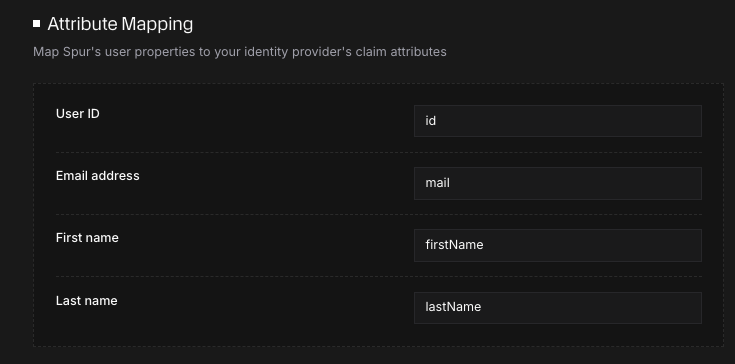
- Navigate to Settings > Organization > SAML.
- Find the Attribute Mapping section.
- By default, Spur expects the attribute names
id,mail,firstName, andlastName. - Confirm each of these matches the corresponding claim name you configured in your IdP (see the Microsoft Entra ID and Okta Workforce guides above).
These fields are editable on the Spur side, which means they can silently drift out of sync with your IdP over time — for example, if a claim gets renamed during an IdP migration, or if your IdP uses a non-standard name (such as emailAddress instead of mail). If SAML logins stop working, or a "mail attribute missing" error appears, this mismatch is the most common cause — see Troubleshooting below.
Other Identity Providers
Spur supports all Identity Providers that support the SAML 2.0 protocol.
- 1
Create a new enterprise application in your Identity Provider
Create a new application in your Identity Provider (IdP). In the next steps, you'll configure your IdP with the settings provided by your Service Provider (Spur), and configure Spur with the settings provided by your IdP. Keep both the IdP and Spur Dashboard open.
- 2
Configure your Service Provider
To configure your Service Provider (Spur), your Identity Provider (IdP) will either ask for the Assertion Consumer Service (ACS) URL and Entity ID or it will ask for the Metadata URL. If your IdP gives you the option to choose between the two, it is recommended to choose the Metadata URL as it is the quickest and most reliable way to configure your Service Provider.
Here is what these settings mean:
- Assertion Consumer Service (ACS) URL - This is your application's URL that your IdP will redirect your users back to after they have authenticated.
- Entity ID - This is a unique identifier for your SAML connection that your IdP application needs.
- Metadata URL - This is the URL to your SAML connection's metadata file. This is the recommended way to configure your Service Provider.
To find the values for these settings:
- In the Spur Dashboard, on the SAML configuration page, find the Service Provider Configuration section.
- Copy the values you need for your IdP.
- In your IdP dashboard, paste the values in the appropriate fields.
- 3
Configure your Identity Provider
You will need to input the following configuration settings provided by your Identity Provider (IdP) into the Spur Dashboard:
- SSO URL - This is your IdP's URL that Spur will redirect your users to for authentication.
- Entity ID - This is the unique identifier of your IdP application.
- Certificate - This is the certificate needed for Spur to securely connect to your IdP.
- In your IdP dashboard, find these values and copy them.
- In the Spur Dashboard, find the Identity Provider Configuration section, paste the values in the appropriate fields, and upload the certificate.
- Click Save Changes to complete the setup.
- 4
Enable the connection
To make the connection available for your users, click the "Enable SAML" button at the top of the page.
Domain Management
When setting up SAML SSO, Spur automatically handles domain conflicts:
- If your organization has a verified domain that matches your SAML domain, it will be automatically removed
- This ensures SAML authentication takes precedence for your domain
- Users with your domain will be redirected to your Identity Provider for authentication
User Provisioning
Spur creates user accounts automatically the first time someone logs in via SSO (just-in-time, or JIT, provisioning) — there's no need to pre-create accounts. Group provisioning via SCIM is not currently supported, so users must be added to groups manually within Spur.
Managing SAML Connection
Disabling SAML
To temporarily disable SAML without losing configuration:
- Go to Settings > Organization.
- Under the "Authentication" section, click Configure next to "SAML".
- Click Disable SAML.
- Users can still log in with email/password during this time.
Updating Configuration
To modify SAML settings:
- Update the relevant fields in the SAML configuration form
- Click Save Changes
- Changes take effect immediately for new login attempts
Troubleshooting
Common issues
- "mail attribute missing" error — The
mailattribute name configured in Spur's Attribute Mapping doesn't match the claim name your IdP is sending. Check both sides: the claim mapping in your IdP (see the Microsoft Entra ID and Okta Workforce guides above) and the Attribute Mapping section under Settings > Organization > SAML — see Attribute Mapping in Spur above. - SSO is enabled but users still can't log in — Confirm the connection is actually enabled (the "Enable SAML" button at the top of the SAML configuration page should show it as enabled, not just saved) and that the domain associated with the connection matches the domain your users log in with.
- Still stuck? — If you've checked the above and SAML SSO still isn't working, Contact Support with the error message you're seeing and which Identity Provider you're using.