
Policies
Monocle policies define how traffic should be evaluated and what decision should be returned for that traffic.
A policy can be used to allow traffic, block anonymous traffic, or apply more granular rules based on your requirements. Depending on your integration, your system may enforce the decision itself, or enforcement may happen directly through a supported integration such as Cloudflare.
Policies are available on Team plans and above.
Policy Overview
The Policy page gives you a summary of your current policy configuration and how it is affecting traffic.
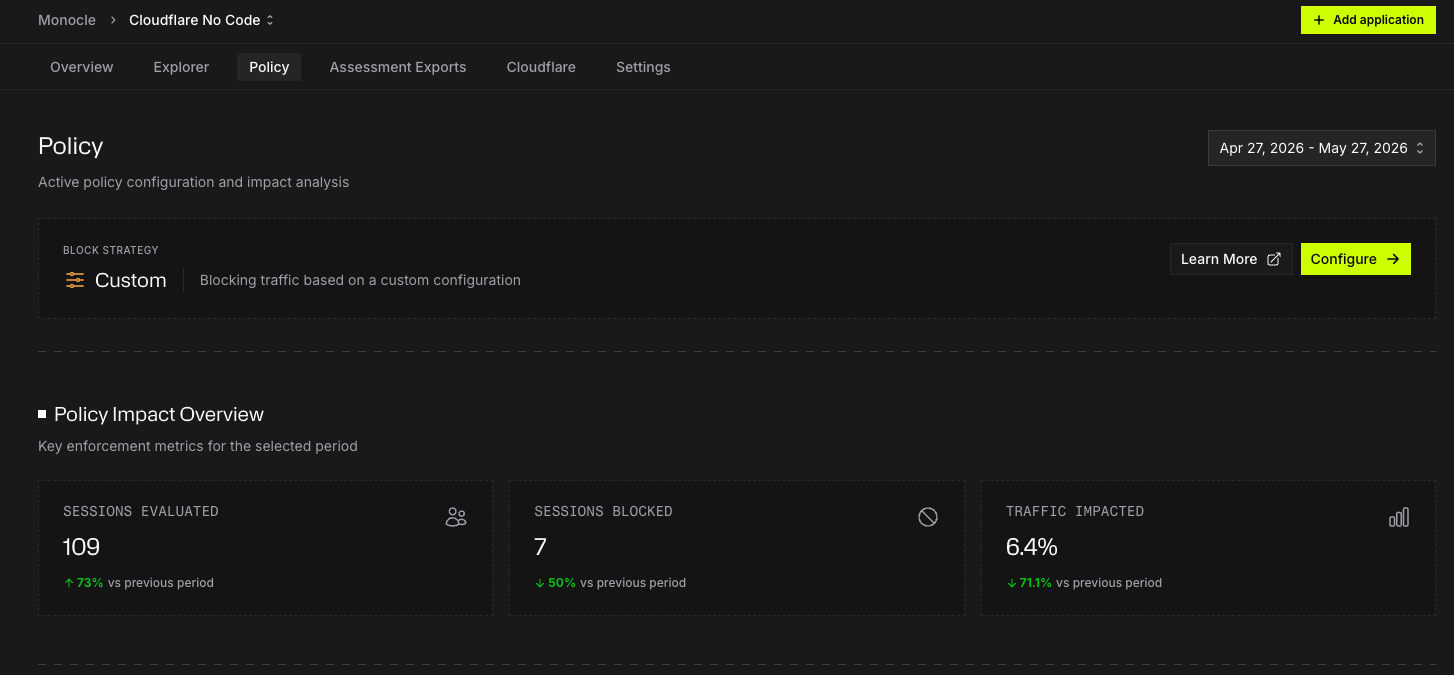
From the Policy page, you can see:
- Your current policy strategy
- The number of sessions evaluated
- How many assessments were allowed
- How many assessments were blocked
- A high-level chart of policy activity
Use this page to understand how your policy is performing before changing configuration.
Policy strategies
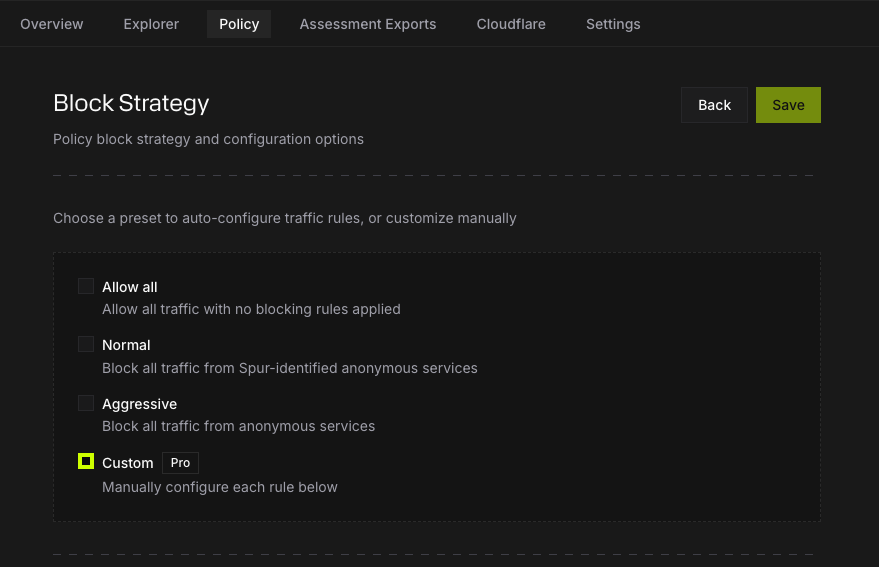
Monocle supports four policy strategies.
| Strategy | Description | Best for |
|---|---|---|
| Allow All | Allows all traffic. No blocking rules are applied. | Monitoring only |
| Normal | Blocks Spur-identified anonymous services. | Most use cases |
| Aggressive | Blocks all traffic identified as anonymous. | High-risk environments |
| Custom (Pro) | Allows advanced rule configuration and overrides. | Granular control |
Selecting a strategy updates the policy rules behind it.
If you manually adjust the rules after selecting a preset strategy, the policy becomes custom.
Explore policy activity
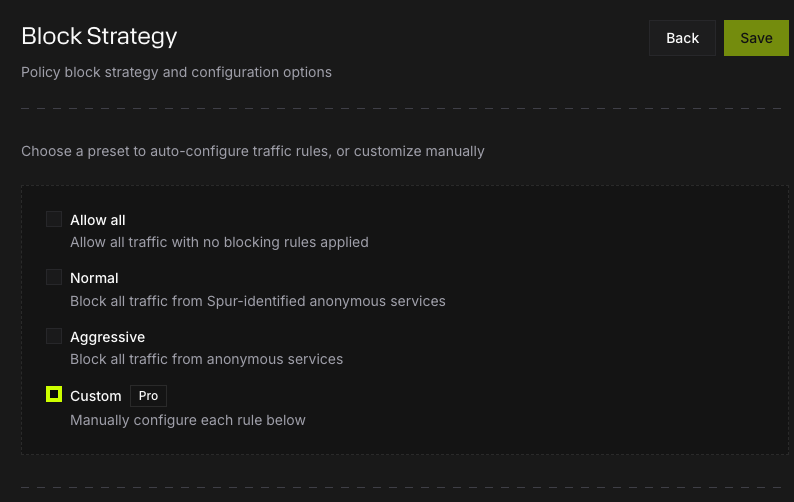
The Policy page includes an Explore action for deeper investigation.
Selecting Explore opens the relevant policy reporting view in Explorer, where you can review policy activity in more detail and apply filters across the data.
Use this when you want to investigate which traffic was allowed, which traffic was blocked, and how policy decisions are distributed across your traffic.
Configuring a policy
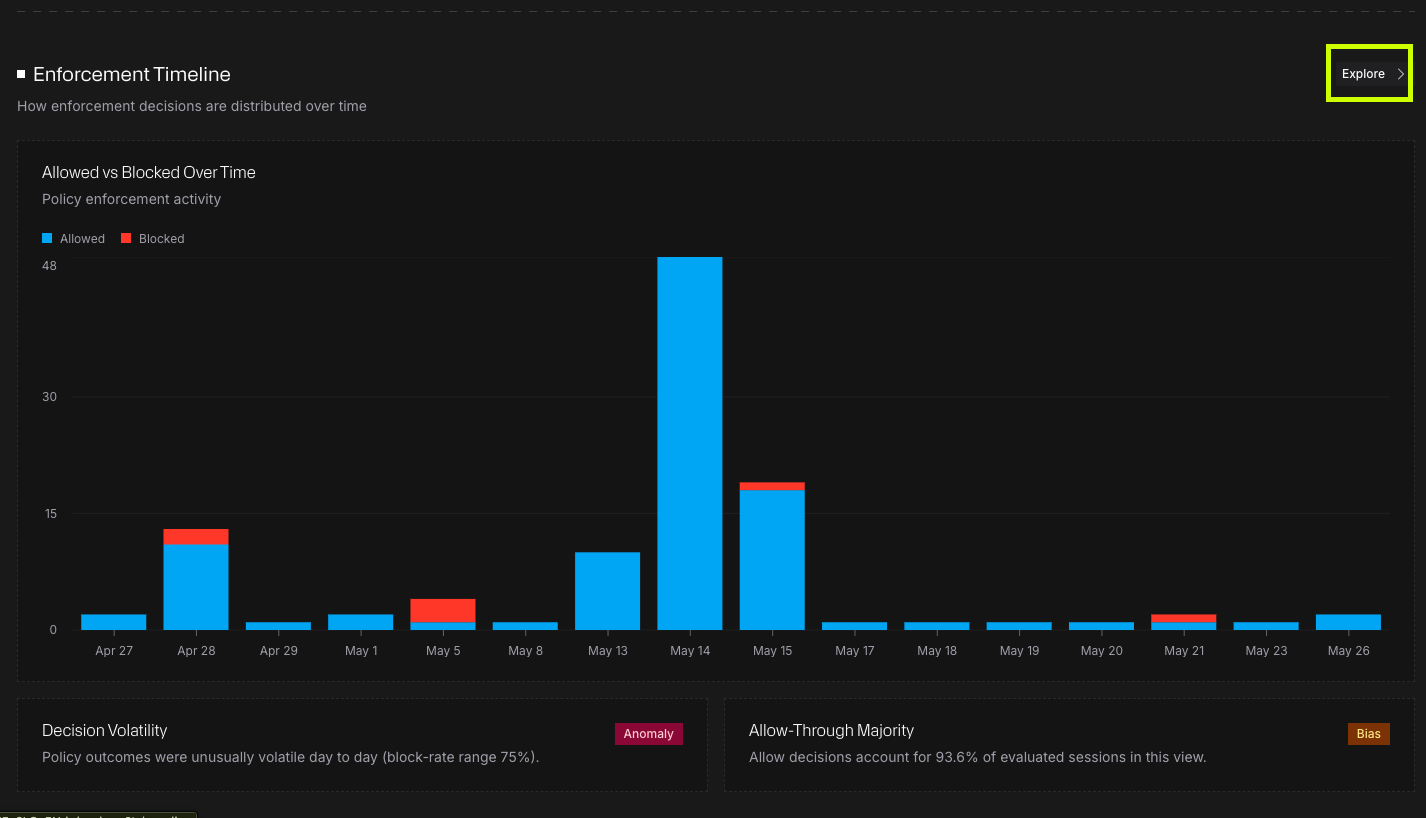
Select Configure to update your policy.
The configuration flow lets you choose a strategy and review the rules that strategy applies. As you switch between strategies, the rule configuration updates so you can see what each strategy does.
If you change an individual rule after selecting a preset, Monocle treats the policy as a custom configuration.
Custom policy rules
Custom policy rules allow more granular control over how traffic is evaluated.
Options may include:
- Block anonymous users
- Block anonymous users but exclude unlabeled proxies
- Block VPN traffic
- Block proxy traffic
- Block datacenter traffic
- Block Remote Desktop Protocol (RDP) traffic
- Block traffic when there is a mismatch in IP information
These rules can be combined to match your preferred enforcement approach.
Custom policy configuration is available on Pro plans.
Max TTL
The maximum time to live (TTL) defines how long a policy decision remains valid.
This value is set in seconds.
For example:
900= 15 minutes
After this time, a new policy decision may be required.
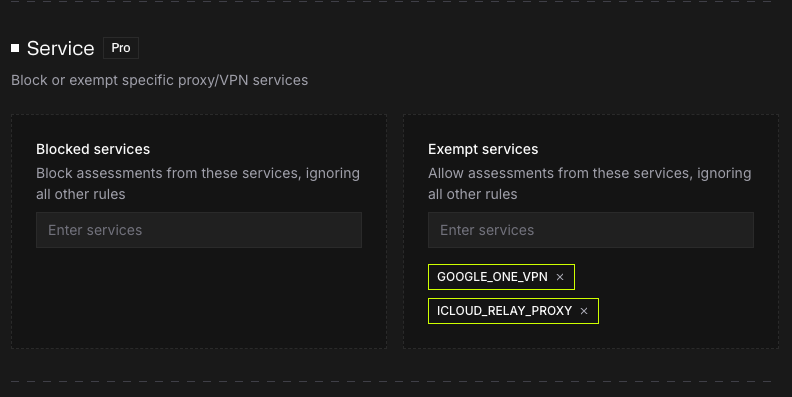
Service controls [Pro]
With a Team plan, you can apply service-level controls to your policy.
| Control | Description |
|---|---|
| Blocked services | Always block traffic from selected services. |
| Exempt services | Always allow traffic from selected services. |
Services are selected using predefined identifiers, such as GOOGLE_ONE_VPN or ICLOUD_RELAY_PROXY.
The input field supports autocomplete so you can search and select services quickly.
Country controls
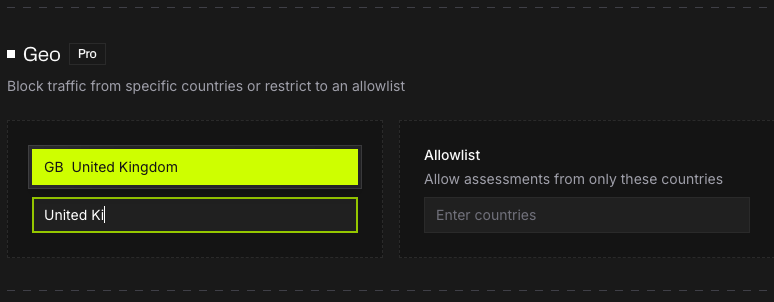
With a Team plan, you can apply geographic controls using country codes.
| Control | Description |
|---|---|
| Blocklist | Block traffic from selected countries. |
| Allowlist | Only allow traffic from selected countries. |
Countries are selected using standard ISO country codes, such as US, GB, or DE.
The input field supports autocomplete so you can search and select countries quickly.
Plan availability
Policy access is gated by plan.
| Feature | Free | Team | Pro |
|---|---|---|---|
| View Policy page | Upgrade prompt only | Yes | Yes |
| Configure policy | No | Yes | Yes |
| Allow All, Normal, and Aggressive strategies | No | Yes | Yes |
| Service controls | No | Yes | Yes |
| Country controls | No | Yes | Yes |
| Custom rule configuration | No | No | Yes |
Users on the Free plan will see an upgrade prompt for policy access.
Users on Team plans can view Pro-only custom rule controls, but cannot enable them unless they upgrade to Pro.
Enforcement behavior
Monocle evaluates traffic and returns a decision: Block or Allow.
Monocle does not enforce that decision by default.
In most integrations, your application or infrastructure is responsible for enforcing the policy decision.
In supported Cloudflare integrations, enforcement can happen directly at the edge and can be configured through the Monocle UI.
Updating a policy
After making changes, select Save to apply them.
Changes affect how future traffic is evaluated.