
IP page
The IP page shows everything Spur knows about a single IP address: whether it's anonymous, which proxy or VPN service operates it, how its traffic flows through a tunnel, where it's located, and what devices use it. You can also step back in time to see exactly what Spur observed on any past day.
Open it by searching for an IP address in the Spur app, or by following a link to any IP elsewhere in the app. The breadcrumb above the page shows the IP's ASN (for example AS20012); select it to open the ASN page.
The page is built from the same data the Context API returns. For every field, see The IP Context Object.
This page describes the new IP page layout, which is on by default. To go back to the previous layout, turn off the New layout switch at the right of the breadcrumb bar. The app remembers your choice for later searches, and switching doesn't count as another search. The previous layout is temporary and will be removed in a future release.
Page header

- IP address and badges. Up to four badges sit beside the IP, in this order. Badges that don't fit beside the IP drop under it:
- Anonymous (red) means traffic from this IP routes through a proxy, VPN or tunneling service rather than serving a single end user. Not Anonymous (green) means Spur's data says it doesn't. When the data doesn't say either way, there's no badge.
- AI appears when the IP has an AI operator. See AI Operator under Summary.
- Entry or Exit shows which end of a tunnel the IP is, based on the entry and exit IPs Spur has observed: an entry IP accepts traffic into a tunnel, and an exit IP is where tunneled traffic reaches the internet.
- The service tag of the service operating the IP, for example
OCULUS_PROXY. Click it to copy the tag.
- Snapshot date and count, for example "Oct 21, 2026 · 175 snapshots". This is the day you're viewing and how many daily snapshots Spur holds for this IP, including today.
- API response (the
{ }button) shows or hides the raw Context API response for the day you're viewing (see Viewing the API response). - Copy copies the IP address. Share copies a link to this IP's page. The link opens today's live data, not the date you're viewing. To share a past day, copy the page address from your browser instead (see the
dtparameter below). - Report opens the IP Address Report form. Use it to tell us what you've observed from this IP (VPN, Proxy, Web Scraping, Account Hijacking, Credential Brute Forcing, Payment Fraud, Click Fraud, Incorrect Labels or Other) or that a label looks wrong.
- Date picker shows the date you're viewing. Click it to jump to another day.
IP History: viewing an IP on a past date
The ruler under the header is the IP History timeline. Each square is a day Spur recorded a snapshot for this IP. The highlighted mark on the right is Today (live context).
- Click a square to load that day. Every section of the page updates to show that day's data. Fields that weren't recorded for that day may show their current values.
- Drag or scroll the ruler to move through time. The left and right arrow keys move focus between the days on the ruler; press Enter or Space on a focused day to load it.
- The buttons at either end only scroll the ruler: « scrolls to the Oldest record and » to Today, and ‹ and › page Back and Next. They don't change the day you're viewing. Click a square to load it.
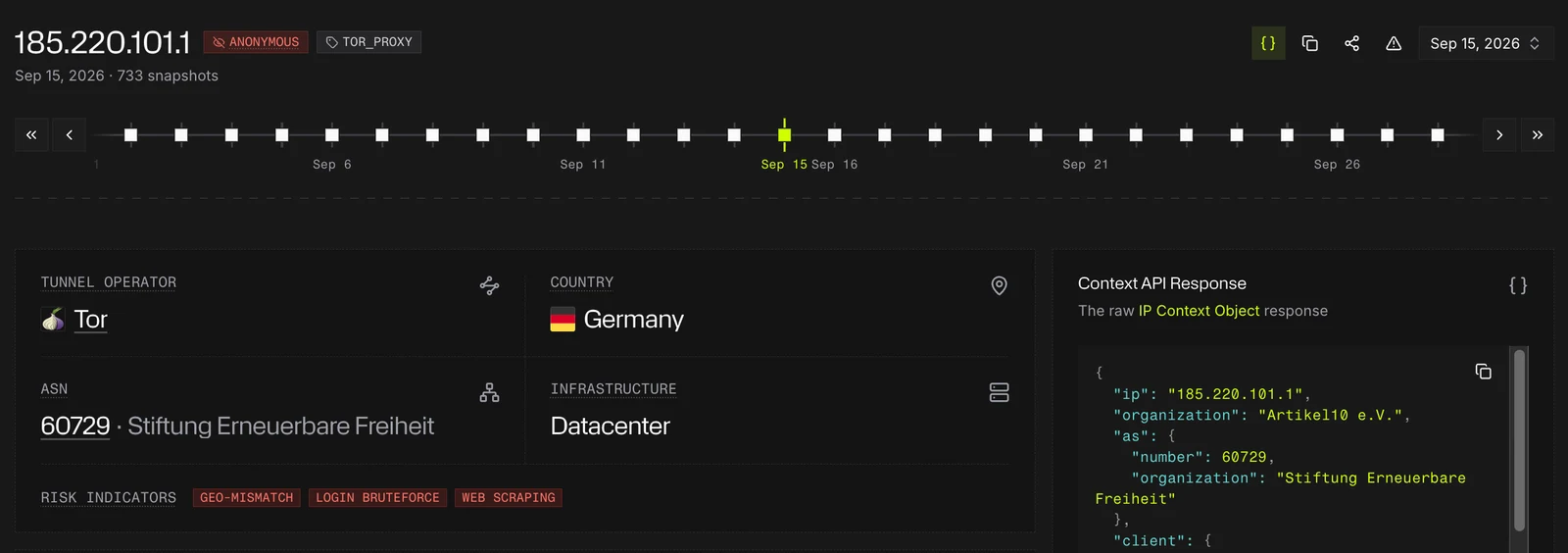
The selected day is highlighted on the ruler, and the header shows its date. Compare this with the same IP today (see Summary): on Sep 15 it was flagged for Web scraping, and wasn't flagged as a Callback proxy. On the right of the ruler, » scrolls the ruler to the Today mark and › scrolls it forward a page. Neither changes the selected day, so to return to today's live data, click the Today mark.
This is especially useful in investigations. If an account was taken over on a particular day, move the ruler to that date to see whether the IP was a VPN exit, which operator ran it, and where its users were at the time.
Jump to a date
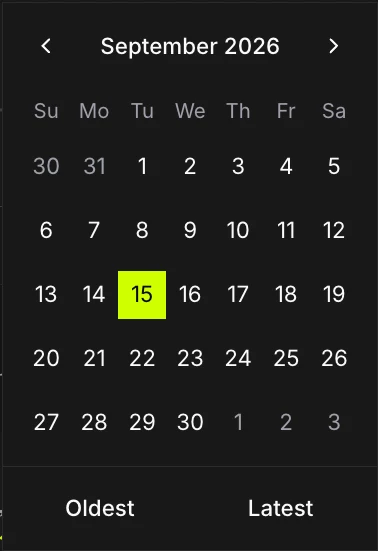
To go straight to a specific day, click the date at the right of the header. The date picker opens on the month you're viewing:
- Days with a snapshot can be selected. Days without one are grayed out, and the day you're viewing is highlighted. Days outside your plan are shaded (see Plan availability).
- Use ‹ and › to move between months, from the IP's first record up to today.
- Oldest jumps to the earliest day your plan includes, and Latest returns to today's live data.
Picking a day closes the calendar and loads that day across the whole page, just like clicking a square on the ruler.
Share a past day
When you pick a past day, the page URL gets a dt=YYYYMMDD parameter, for example app.spur.us/search?q=185.220.101.1&dt=20260915. Share that link and the other person opens the IP on the same day. If there's no snapshot for that date, or the date is outside the viewer's plan, the page shows live data instead.
Plan availability
How far back you can go depends on your plan. On the Community plan you see the latest day only. Team plans open the last 30 days, and Pro and Enterprise plans reach back about two years.
The ruler and the date picker still show days outside your plan, shaded, so you can see which days Spur recorded. Selecting one shows an upgrade prompt.
Summary
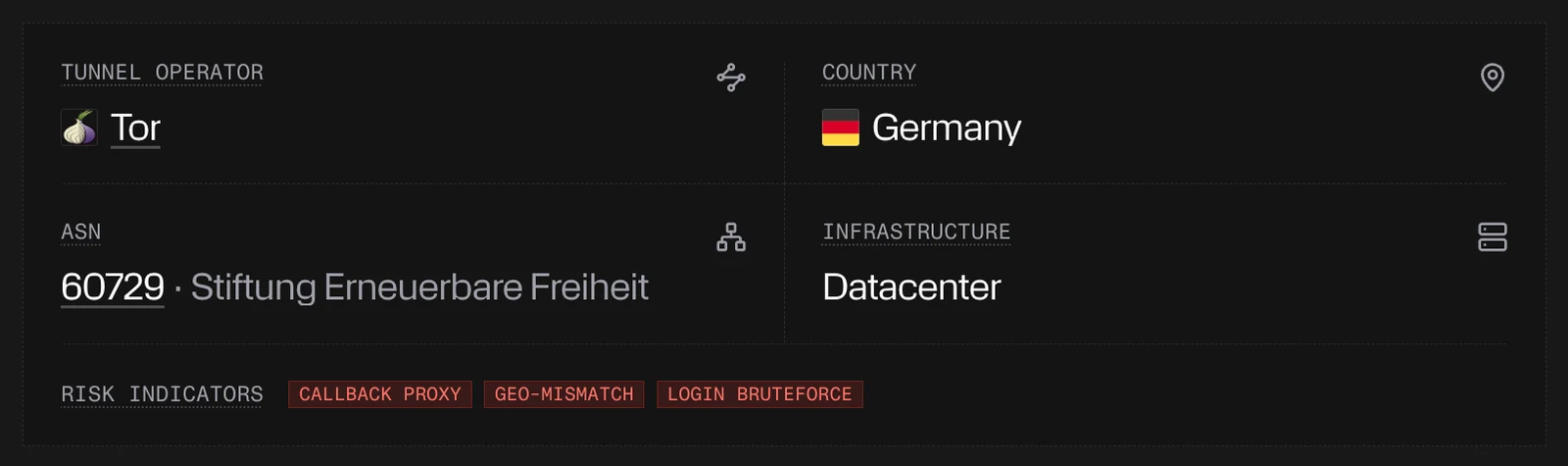
The summary card gives an at-a-glance view of the selected day:
- Tunnel Operator: the service operating this IP's primary tunnel, preferring an anonymizing one when there's more than one. Click it to open the service (see Opening a linked result). The Tunnel Operator section has it in full.
- AI Operator: when the IP has an AI operator, this takes the place of the Tunnel Operator cell. It shows the service and the kind of activity seen from the IP: agentic, crawler or both. The header also shows an AI badge. The Tunnel Operator section below still shows the tunnel.
- Country: the country the IP is geolocated to. This is where traffic appears to come from, not necessarily where the user is; Geo Intelligence has the city and coordinates.
- ASN: the autonomous system number, with the organization it's registered to beside it. Click the number to open the ASN.
- Infrastructure: the type of network the IP sits on, for example Datacenter.
- Risk Indicators: any risks detected for this IP, Callback proxy, Geo-mismatch, Login bruteforce, Web scraping or Ad fraud, or any other risk Spur returns, shown by name. Not detected means there are none. These come from the
risksfield of the IP Context Object. Tunnel use isn't listed here; the Anonymous badge and the Tunnel Operator section show it instead.
Observed Residential Proxies
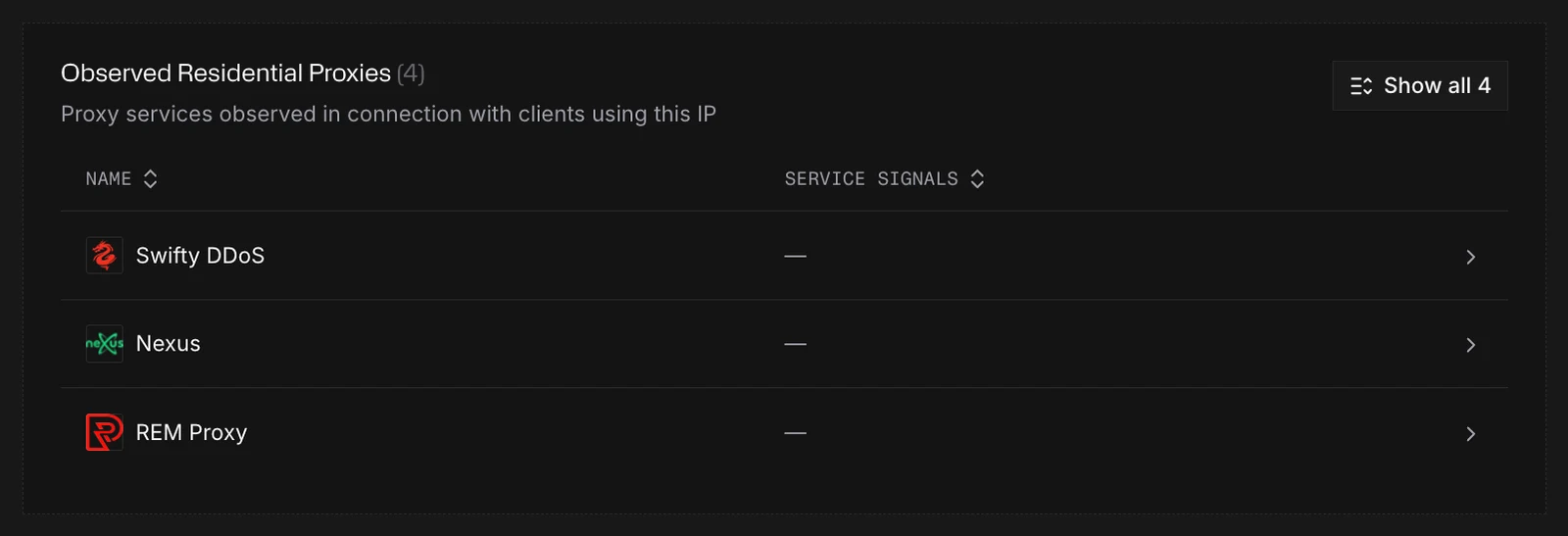
Right under the summary, this card lists the proxy services observed in connection with clients using this IP. The heading shows how many of them Spur has a profile for. Click a row to open that service (see Opening a linked result).
- Name: the service.
- Service Signals: what to know about the service beyond being a residential proxy. A red Malware Proxy badge marks a service Spur classifies as a malware proxy, and a service that isn't a residential proxy shows its main type instead. A dash means there's nothing to add.
The card shows three rows at first. Use Show all N for the rest and Show less to collapse them again. The heading count and the rows cover only services Spur has a profile for. Services Spur names for this IP but has no profile for aren't in the count; they're listed under the table as "+N more not shown", so the heading can read (0) next to a "+N more not shown" line. If there are none at all, it shows "No residential proxies observed".
This card always appears, even when no tunnel operator is identified.
Viewing the API response
The Context API Response card shows the data behind the page: the raw IP Context Object. It's open by default. On a wide screen it sits beside the summary and Observed Residential Proxies, taking a third of the width; on a narrower one, below them.
- It follows the date you're viewing. On a past day it shows the snapshot Spur recorded that day, not today's live data, so you can see exactly which fields changed and when.
- Copy the response with the button on the card, for example to paste into a ticket, compare against what your own integration received, or share with Spur support.
- Hide it with the
{ }button in the header, and click it again to bring the card back. Spur remembers your choice in this browser, so the card stays closed (or open) on the next IP you look up, and the same setting applies to Service Tag pages and to sheets. - The card's description links to the IP Context Object reference, which explains every field.
Use it when you need exact field names and values, for example to build a rule on risks, tunnels or client in your own systems, or to check why the page shows what it shows.
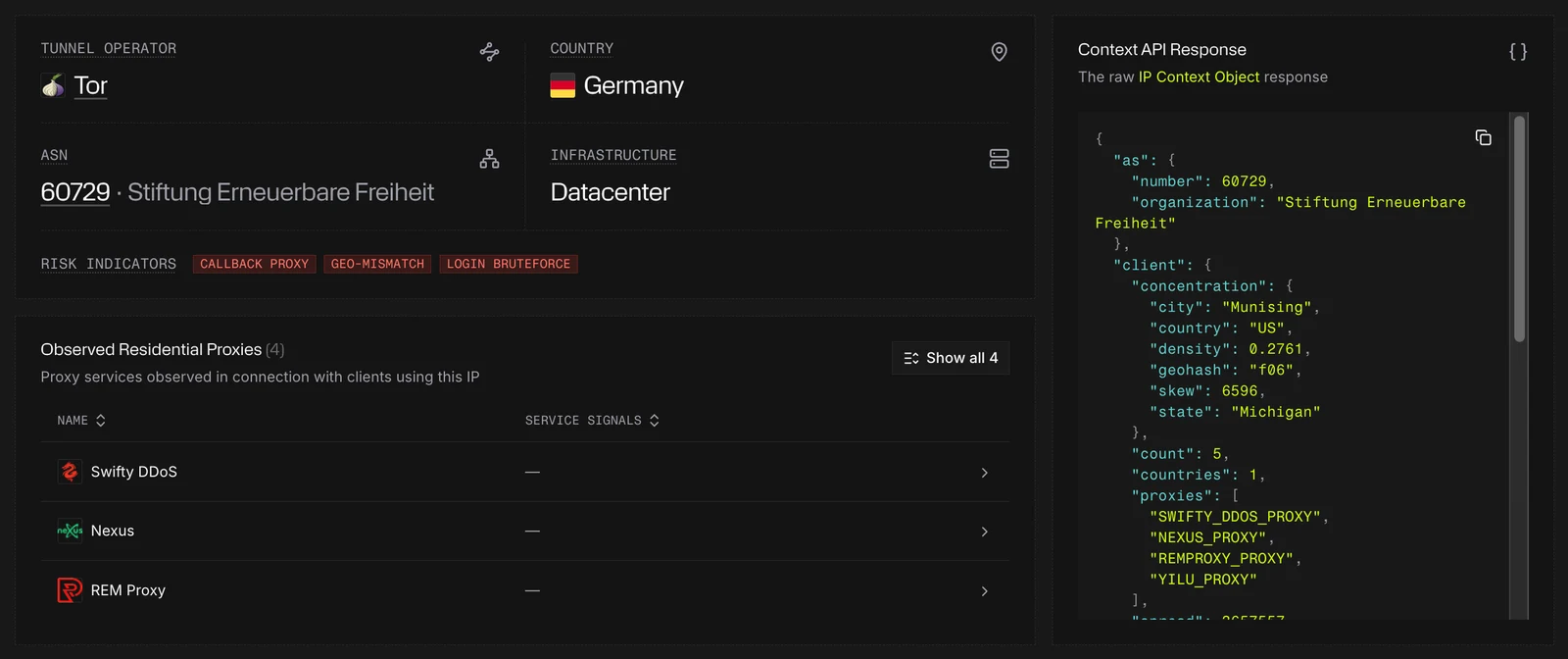
The response scrolls inside the card, so long objects don't push the rest of the page down. For today, the card is exactly the GET /v2/context/{ip} response.
Tunnel Operator
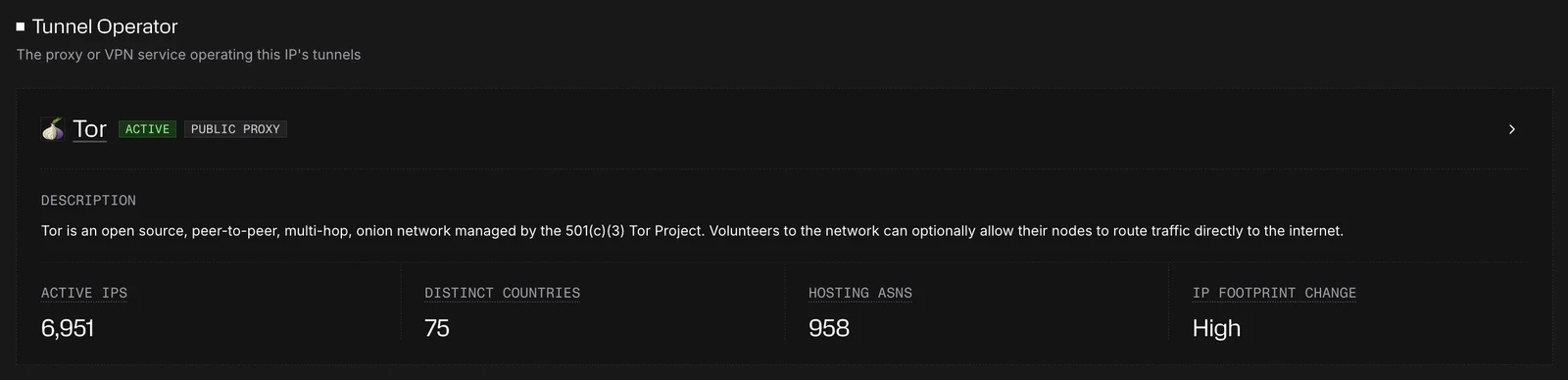
This section shows the proxy or VPN service operating the IP's tunnels.
Operator card
When a tunnel operator is identified, its card shows the service name, an Active or Inactive badge, and the service's types (for example Public Proxy). Types that don't fit collapse into +N; click it to see the rest. Under the heading, a separate Description band holds the service's description, or a dash when there isn't one. Four stats describe the service across Spur's data:
- Active IPs: distinct IP addresses currently associated with this service across all its exit locations.
- Distinct Countries: distinct countries where the service operates exit infrastructure.
- Hosting ASNs: distinct hosting providers (ASNs) the service uses for its exit infrastructure.
- IP Footprint Change: Low, Moderate or High, combining the service's daily IP churn with its net growth in IP count. It uses the same thresholds as the Service Tag page.
The badge, service types, description and stats appear only when the operator matches a Spur service tag. Otherwise the card shows the operator's name and a dash in the Description band. When it matches, click the card's header to open the service.
Observed Tunnel Flow
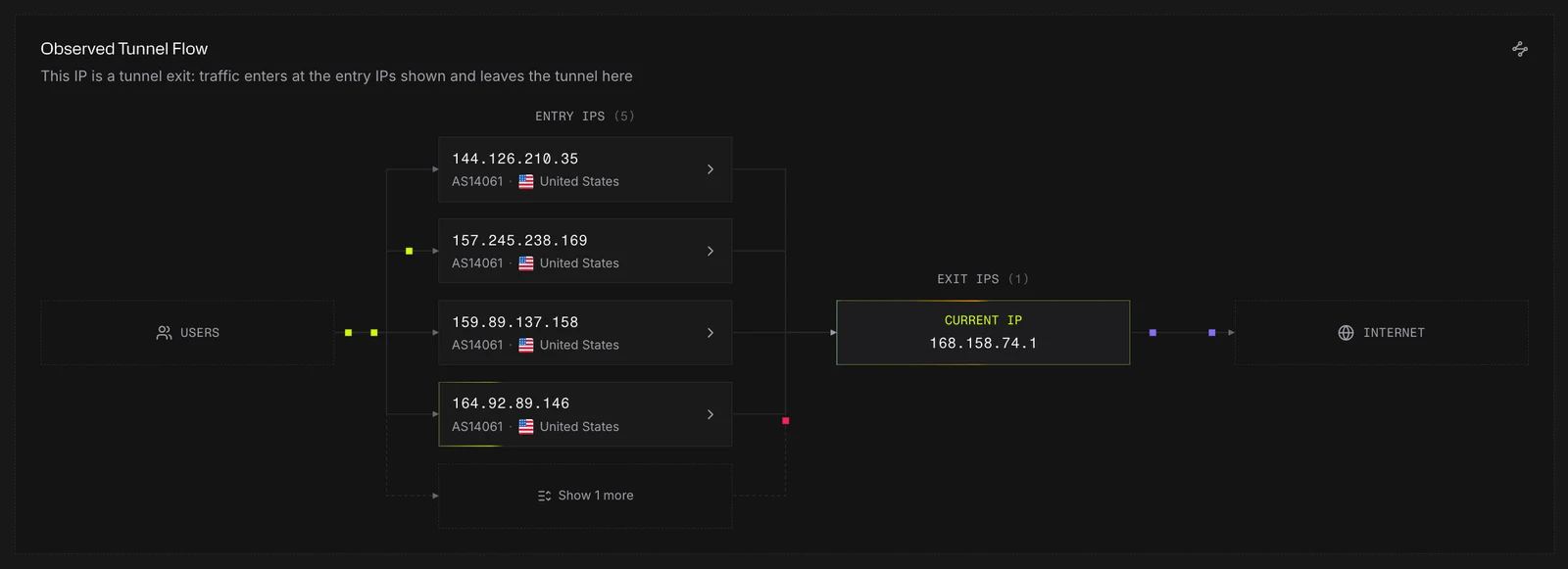
The tunnel flow diagram shows how traffic moves through the tunnel this IP belongs to: Users → Entry IPs → Exit IPs → Internet. The IP you're viewing is marked Current IP, and the card's description says which end it is.
- If you're viewing an exit, the diagram shows the entry IPs where traffic went into the tunnel before leaving here.
- If you're viewing an entry, it shows the exit IPs where traffic left the tunnel.
Each IP on the other side is a card showing its address, ASN and country, plus the operator when more than one is involved. Click a card to open that IP, which makes it easy to follow a tunnel from end to end. Four are shown at first; use Show N more for the rest, and Show less to collapse them again.
The diagram appears only when Spur has observed entry or exit IPs for this IP. If there are none and no tunnel operator either, the whole Tunnel Operator section is left out.
Geo Intelligence
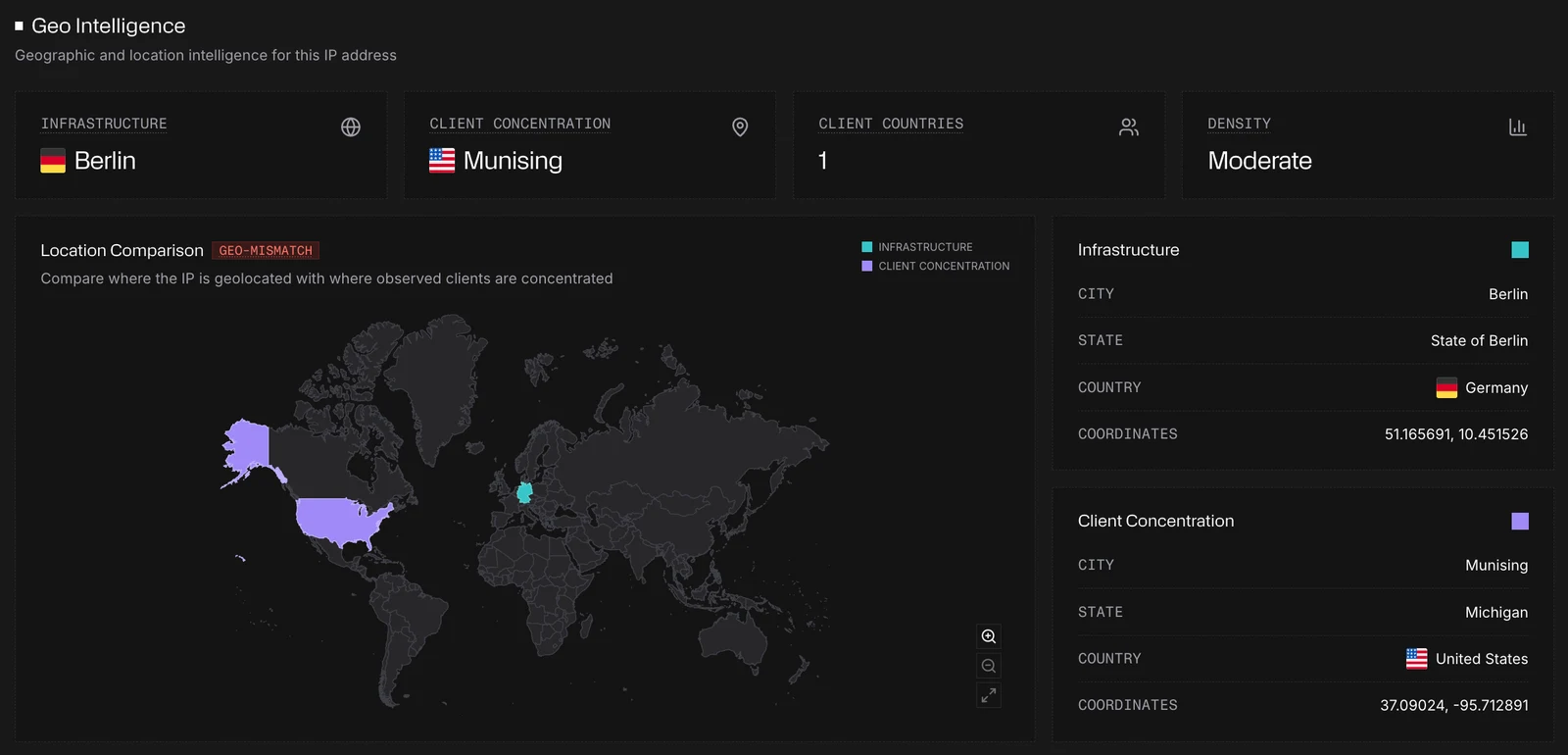
This section compares where the IP is with where the people using it are.
- Infrastructure: the physical location of the IP's infrastructure, typically the datacenter or ISP point of presence.
- Client Concentration: where most of the IP's clients appear to be, inferred from device-side signals.
- Client Countries: the number of distinct countries the clients behind this IP connect from.
- Density: how concentrated those clients are: High (0.5 or more), Moderate (0.2 to under 0.5) or Low, from the
client.concentration.densityvalue. - Location Comparison plots Infrastructure and Client Concentration on one map. When Spur flags this IP with the Geo-mismatch risk, a red GEO-MISMATCH badge appears next to the title, and Geo-mismatch also appears under Risk Indicators in the summary. A mismatch is a common sign of a proxy or VPN: the IP is in one place, but its users are somewhere else.
- The Infrastructure and Client Concentration cards give city, state, country and coordinates for each.
Device Activity
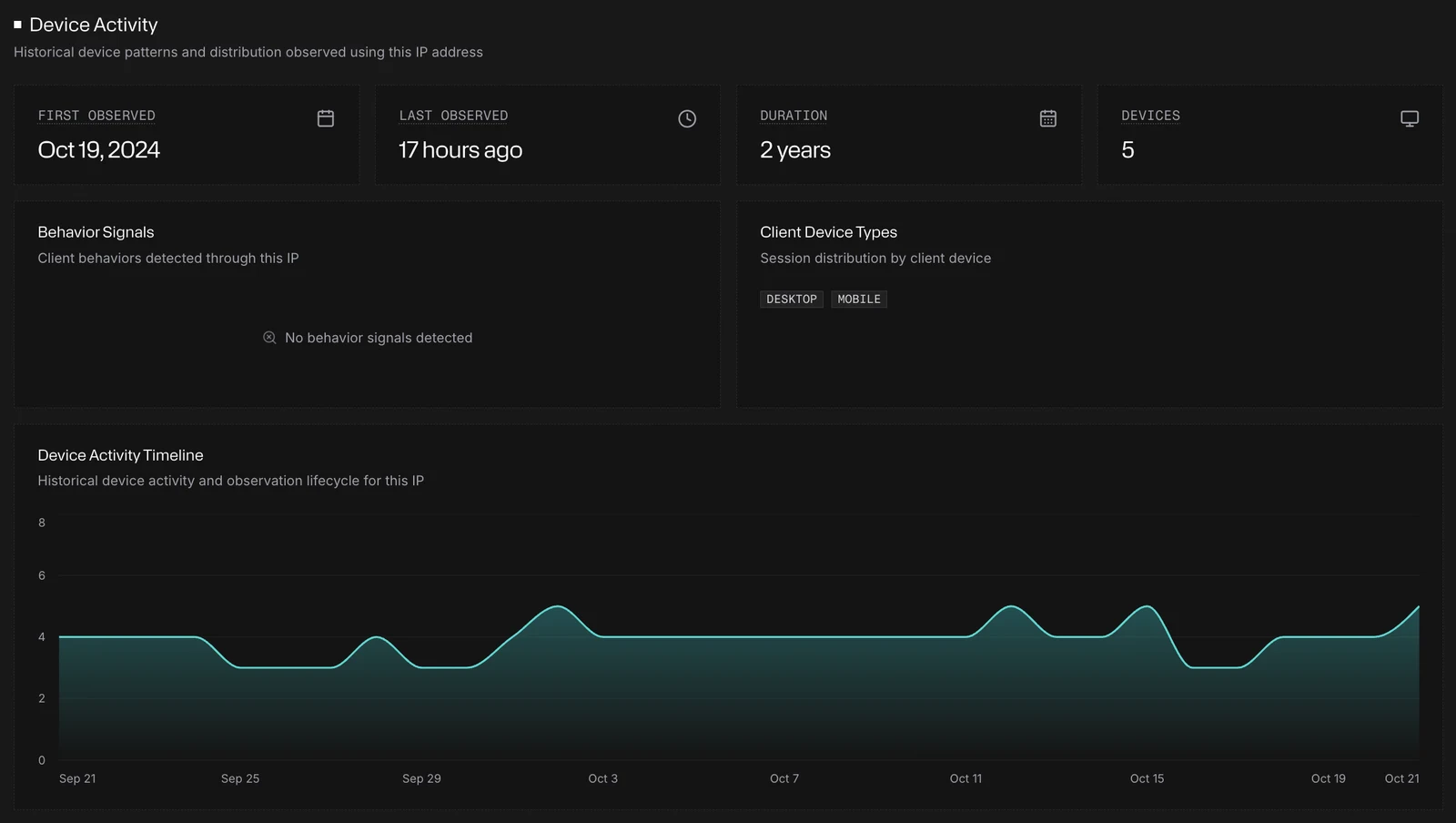
Historical patterns for the devices seen using this IP:
- First Observed, Last Observed, Duration and Devices summarize how long Spur has seen activity and from how many devices.
- Behavior Signals: client behaviors detected through this IP.
- Client Device Types: the device types seen using this IP, such as desktop and mobile.
- Device Activity Timeline: active devices over time, showing how use of the IP has changed. A flat line at zero means no device activity was observed.
Opening a linked result
Services, ASNs and IPs on the page open in a sheet from the right, so you don't lose your place. This applies to the service and ASN in the summary, the operator card, the tunnel flow cards, and the rows of Observed Residential Proxies.
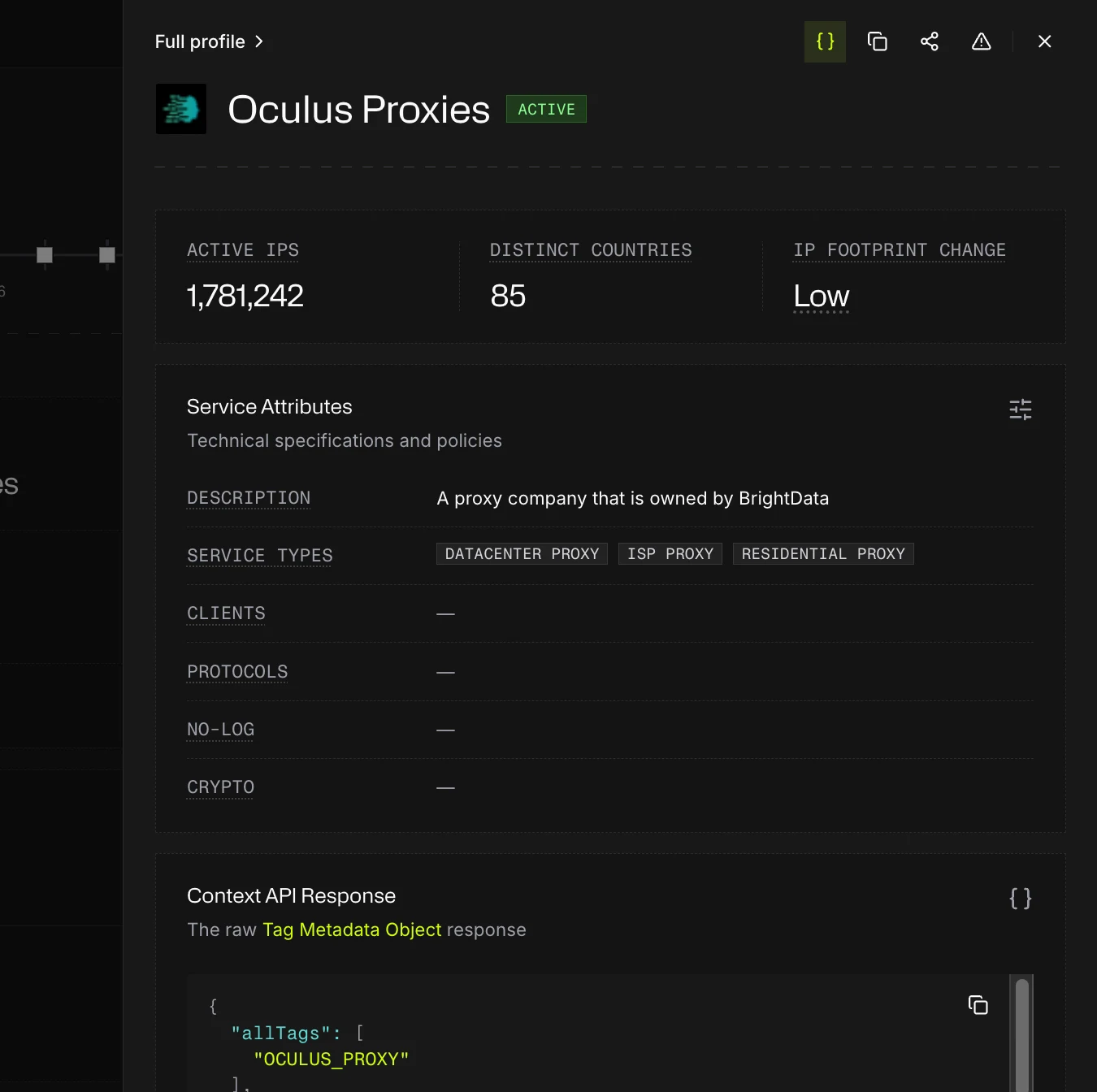
- The sheet shows the linked result's profile in a condensed, single-column view: no maps or trend charts, and on an IP no ruler or date picker.
- The sheet has its own header buttons:
{ }for the API response (the same setting as the page's), plus copy, share and report for the result it shows. - Full profile opens the full page and closes the sheet. X closes the sheet and returns you to the IP page.
- Links inside the sheet replace its content and add a back button named for the result you came from.
- To open the full page in a new tab instead, Cmd-click (Mac), Ctrl-click (Windows), Shift-click or middle-click the link.
Opening a sheet runs a search for that result, so it counts toward your searches like visiting its page. A result already loaded on the page or in a sheet isn't searched again.