
Changelog · — Monocle Assess & Enforce, policy decision logging, and Install with AI.
Assess & Enforce
Assess & Enforce lets Monocle assess visitors across your whole site while applying your policy only on the paths you choose, such as login or checkout. Pages outside those paths keep working as they do today.
Assess & Enforce is available on the edge integrations: Cloudflare, Amazon CloudFront and Fastly. If you use one of the SDKs (JavaScript, React, Next.js, iOS or Android), your application enforces policy decisions itself; see Implementation.
How it works
Assess & Enforce separates two things:
| What it does | Where you set it | |
|---|---|---|
| Assess | Monocle assesses visitor sessions and builds a picture of each one. It doesn't block anything on its own. | Assessment Scope on your integration's page |
| Enforce | Your policy is applied, and blocked visitors get your block response. This happens only on the paths you name. | Configure Policy → Scope |
A typical visit looks like this:
- A visitor lands on any page of your site. Monocle assesses the session, in the background when script injection is on.
- The visitor browses normally. Nothing is enforced on these pages.
- The visitor reaches an enforced path, such as
/login. Monocle applies your policy to the session it has already assessed. - If the policy returns Allow, the request continues. If it returns Block, the visitor gets your block response.
Assessment Scope
Assessment Scope decides which pages trigger Monocle to assess user sessions. With script injection on, assessments run passively in the background and don't block sessions unless an active policy applies. With it off, or on CloudFront without the manual include tag, visitors see a short verification screen when an assessment runs.
Find it on your integration's page in the Monocle app (Cloudflare, CloudFront or Fastly).
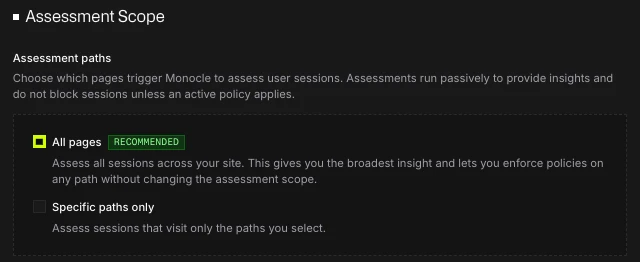
| Option | What it means |
|---|---|
| All pages (recommended) | Assess all sessions across your site. This gives you the broadest insight and lets you enforce policies on any path without changing the assessment scope. |
| Specific paths only | Assess only sessions that visit the paths you select. |
Assessing specific paths only
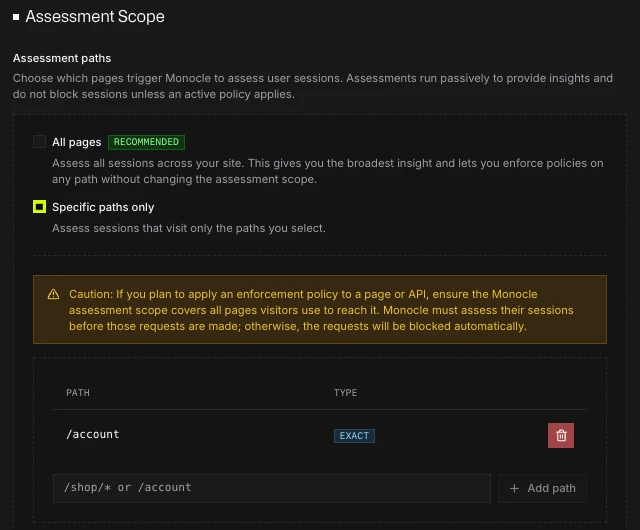
If you choose Specific paths only, add each path you want assessed:
- An exact path, such as
/account - A section, such as
/shop/*, which covers everything under/shop/
A wildcard in an assessed path must come last. For example, /product/* works and /product/*/reviews doesn't.
Important: if you plan to enforce a policy on a page or API, make sure the assessment scope covers every page visitors use to reach it. Monocle has to assess a session before those requests are made. Otherwise, the requests are blocked automatically.
Enforced paths
Enforced paths are where your policy is applied. Set them on Configure Policy, in the Scope section. Connected integrations apply these paths at the edge.
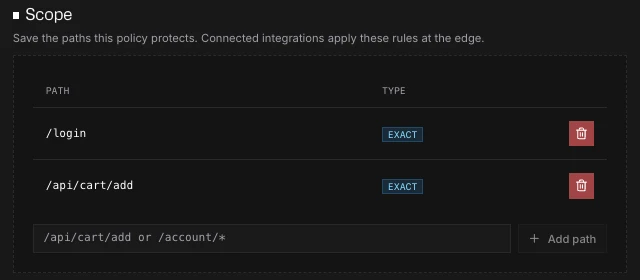
Each enforced path is one of two types. Monocle works out the type from how you write the path:
| Type | How to write it | What it protects |
|---|---|---|
| Exact | Any path without a trailing /*, such as /login or /api/cart/add | That URL only |
| Section | A path ending in /*, such as /checkout/* | Everything under that section |
In an Exact path, * can stand in for any whole segment after the first. For example, /products/*/overview matches /products/123/overview.
When you add a Section path, Monocle shows a warning: make sure nothing under that path is a public API, webhook or app client, because those requests will be denied. If something under the section needs access, add its addresses as trusted IP addresses.
Path rules
- Start every path with
/. - Leave out query strings and fragments (anything after
?or#). - Paths are matched in lowercase, and a trailing slash is ignored.
- A wildcard must be a whole segment.
/products/*/overviewworks and/products/ab*doesn't. - Name the first segment before any wildcard.
/users/*/accountworks and/*/accountdoesn't. - You can't enforce the whole site with
/*, because it can disrupt pages and integrations. Choose a path such as/checkoutor a section such as/account/*. - Paths reserved for Monocle itself can't be added.
- An enforced path can't sit inside an excluded path, and an excluded path can't sit inside an enforced section. For example, you can't exclude
/account/settings/*while/account/*is enforced.
Changes to enforced paths are applied at the edge by your connected integration, so they don't need a redeploy.
Saving and publishing
Select Save on Configure Policy to apply your changes. If you see Paths are saved but not yet live, your changes were saved but haven't reached your integration at the edge yet. Save again to publish them. If you edit the paths first, that save publishes the pending change along with your edit.
If your integration isn't deployed yet, or runs an older plugin, Configure Policy tells you. Paths don't take effect until the integration is deployed or updated. See Updating an existing deployment.
Script injection
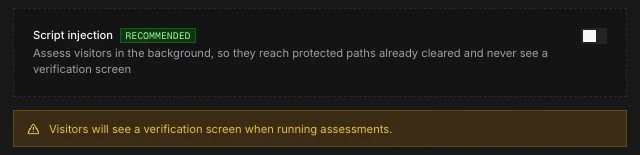
Script injection (recommended, on by default) assesses visitors in the background, so they reach protected paths already cleared and never see a verification screen.

If you turn script injection off, visitors see a verification screen when an assessment runs.
Amazon CloudFront: CloudFront can't inject the script, so script injection is always off and its controls don't appear. Instead, the CloudFront page shows a Manual include tag. Add it to your pages so Monocle can assess visitors in the background:
<script src="/__mcl/<segment>/mcl.js" defer></script>
The tag appears on the CloudFront page once the integration is deployed. Copy the exact tag from there. Its path is on your own domain and stays the same for this deployment, so you only add it once. If your pages send a Content Security Policy, allow https://js.mcl.io and 'self' in both script-src and connect-src, or the script is blocked and visitors keep seeing the verification screen. Without the tag, a visitor sees a short verification screen once an hour on the first assessed page they open. With it, assessment runs in the background.
Trusted IP addresses
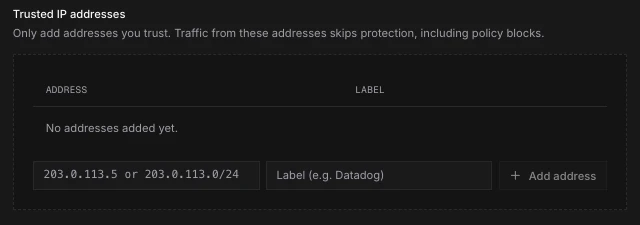
Use Trusted IP addresses for machine callers you know and trust, such as monitoring services, partners or your own backend. Traffic from these addresses skips protection, including policy blocks, so only add addresses you trust.
- Enter a single IP address (
203.0.113.5) or a CIDR range (203.0.113.0/24). - Add a label so your team knows what each entry is for, such as
Datadog. - You can't trust every address (a
/0range).
Excluded paths
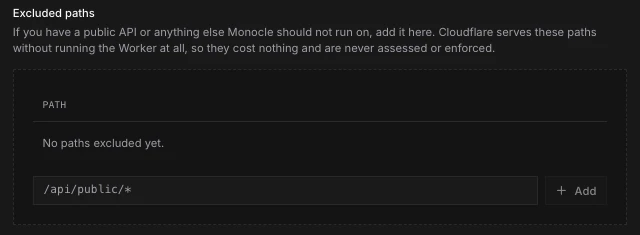
Cloudflare and Fastly. If you have a public API or anything else Monocle shouldn't run on, add it to Excluded paths:
- Cloudflare serves these paths without running the Worker at all, so they cost nothing and are never assessed or enforced. A Cloudflare route matches the whole URL, including any query string, so
/api/public/*doesn't cover/api/public/x?utm=1, and that request still runs the Worker. To cover query strings, use the open-ended form/api/public*. It also excludes any path that starts with the same characters, such as/api/publicity. The Cloudflare page warns you about exclusions that query strings can bypass. - Fastly's Compute service still receives these requests, because the whole domain is on it, but passes them straight to your origin untouched. Nothing is assessed, enforced or changed.
An excluded path is /path exactly, /path/* for a section, or /path* for everything starting with it.
Cloudflare routes: if your zones already have Cloudflare routes that are more specific than Monocle's, Cloudflare sends those requests to them instead, and Monocle won't run there. The Cloudflare page lists any routes like this.
Block response
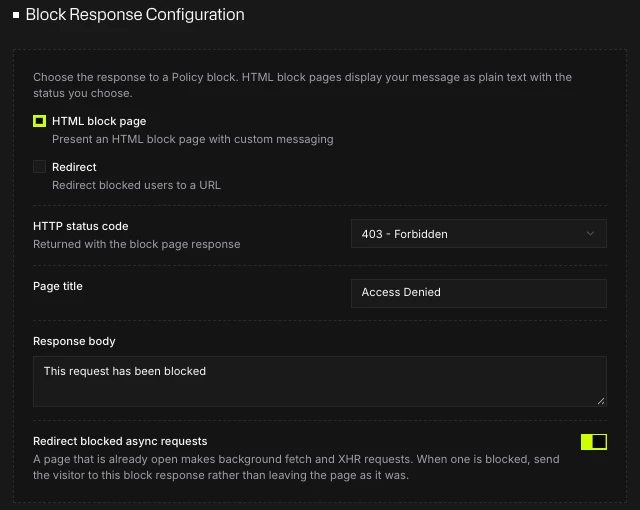
The block response is what a visitor gets when your policy returns Block on an enforced path. Set it on your integration's page.
| Option | What happens |
|---|---|
| HTML block page | Shows a block page with your own messaging, as plain text: HTML in the page title or response body is shown as written, not rendered. Choose the HTTP status code (401, 403 or 404; 403 by default), the page title and the response body. |
| Redirect | Sends blocked users to a page on your site. The URL must use https and be on one of the deployment's hostnames, with no port, query string or fragment. |
Redirect blocked async requests (Cloudflare and Fastly): a page that's already open can make background fetch and XHR requests. Turn this on to send the visitor to your block response when one of those requests is blocked, rather than leaving the page as it was. It needs script injection on.
The block response is deployed with your integration but only used when an active policy returns Block. You need a Team plan or above to configure a policy that can return a Block decision.
Updating an existing deployment
Integrations deployed before Assess & Enforce keep working as they were deployed. To use the settings on this page, update the integration from its page in the Monocle app. Select Update Worker on Cloudflare, Update Service on Fastly, or Update Integration on CloudFront. You don't repeat the setup flow. Before you update an integration deployed before Assess & Enforce:
- Add the paths you want protected on Configure Policy. After the update, protection follows your policy's enforced paths.
- Cloudflare: the new version needs two extra API token permissions, Account → Workers KV Storage → Edit and Zone → DNS → Read. Create a token with them and replace the saved one in the Deployment card.
- CloudFront: update this app's access-role stack in AWS with the current Monocle CloudFormation template. The CloudFront page links to it.
Until you update, the integration runs an older plugin and won't pick up your assessment scope or enforced paths.