
Assessment Exports
Assessment Exports gives you a file of every Monocle assessment for an application over a date range, one assessment per record. Use it for fraud investigations, compliance checks, risk decisions, or loading Monocle data into your own analytics or data pipeline.
Exports run in the background. When yours is ready, you get an email and can download it from the Spur app.
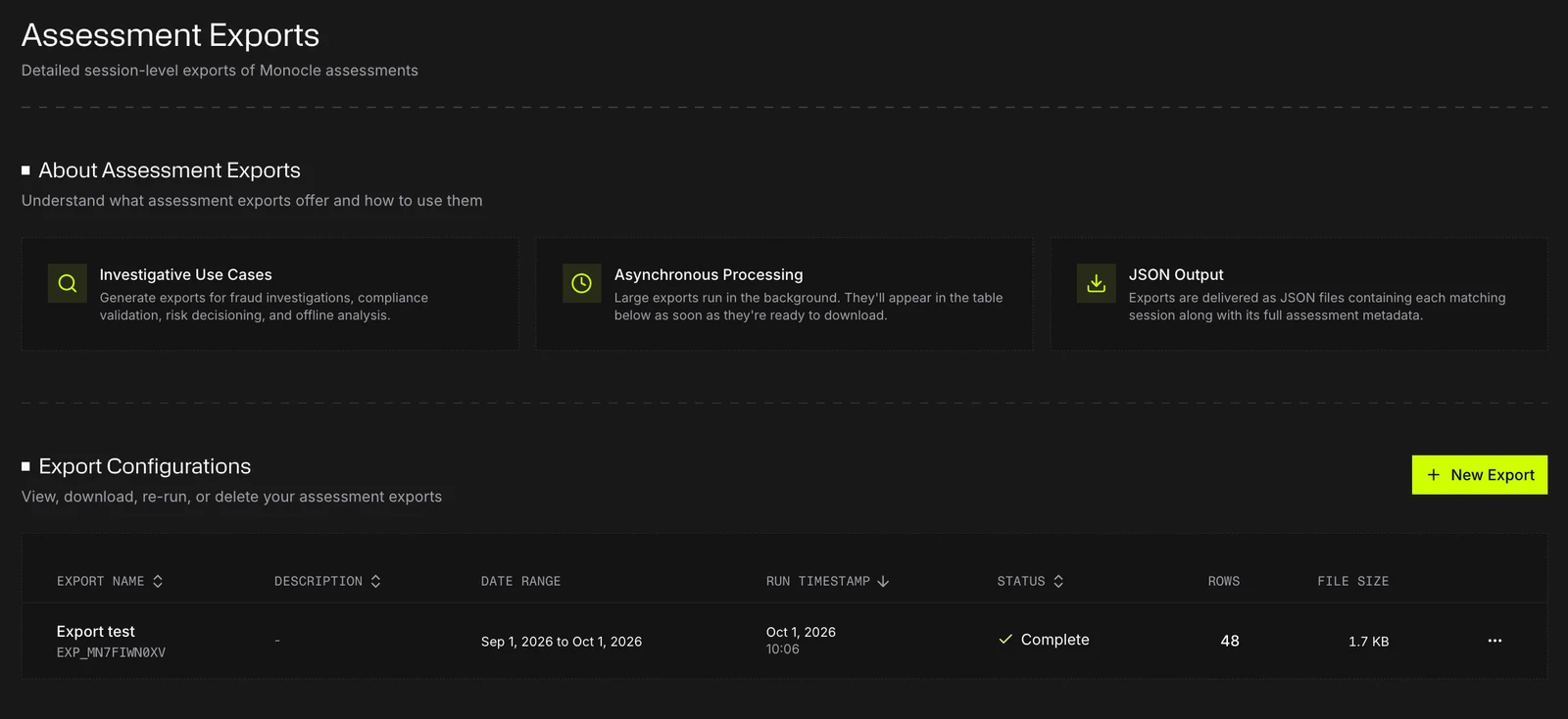
Assessment Exports requires the Pro plan or above. On other plans, the Assessment Exports tab doesn't appear in your application, and opening the page directly shows an Upgrade plan prompt.
Create an export
- In the Monocle dashboard, open your application and go to Assessment Exports.
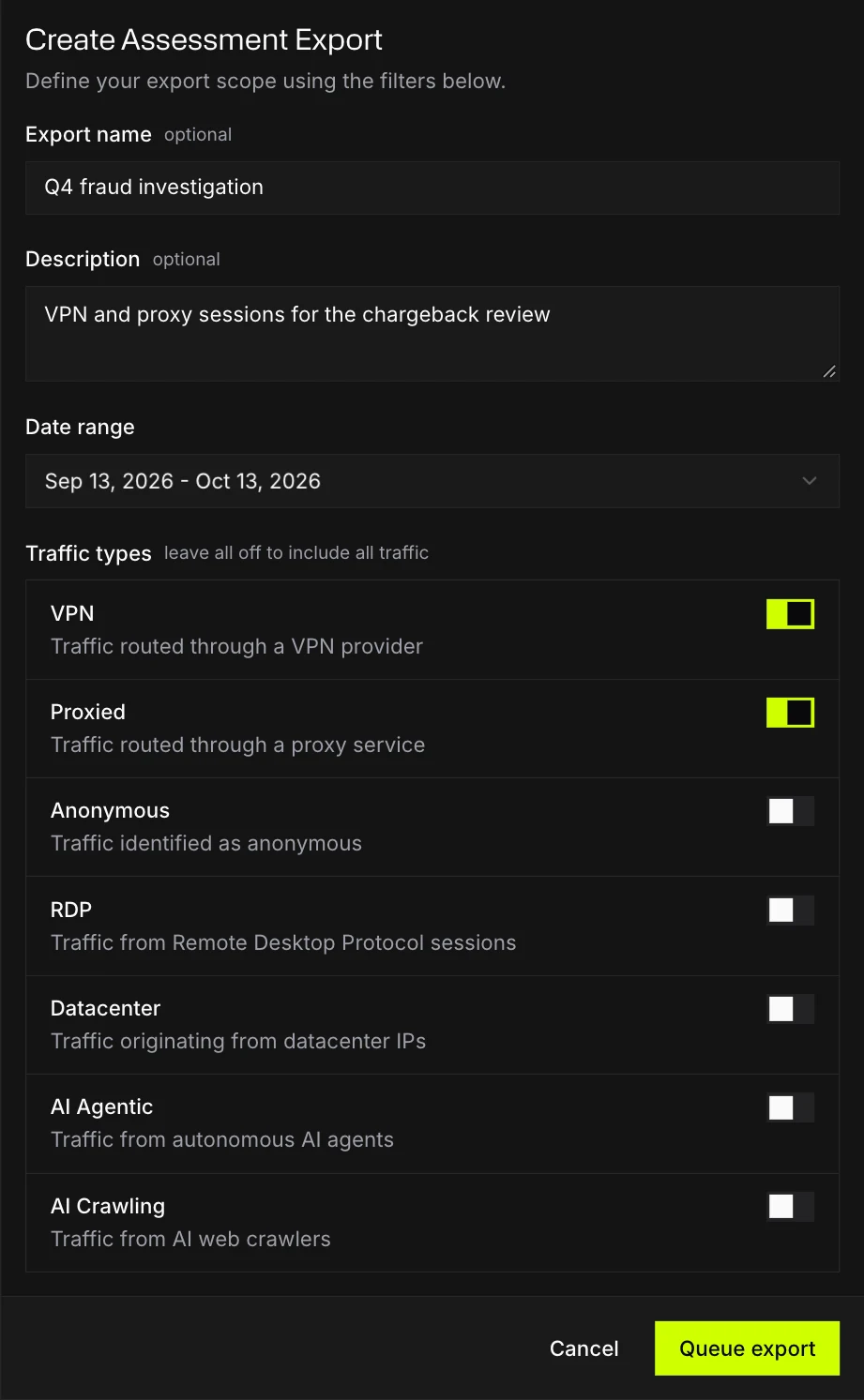
- Select New Export. The Create Assessment Export dialog opens.
- Fill in the export's scope:
- Export name (optional), such as
Q4 fraud investigation, up to 200 characters - Description (optional), up to 500 characters
- Date range: Last 7 Days, Last 30 Days, Last 60 Days, Last 90 Days, or a custom range. Days run midnight to midnight UTC, and the range includes both the first and last day, so Last 7 Days covers 8 calendar days, including the part of today that has passed when the export runs. The end date must be after the start date, so the shortest export covers two days.
- Traffic types: turn on the traffic to include, or leave them all off to include all traffic
- Export name (optional), such as
- Select Queue export.
An export can contain up to 500 million assessments. A larger one fails, so narrow the date range or traffic types.
Traffic types
| Traffic type | What it includes |
|---|---|
| VPN | Traffic routed through a VPN provider |
| Proxied | Traffic routed through a proxy service |
| Anonymous | Traffic identified as anonymous |
| RDP | Traffic from Remote Desktop Protocol sessions |
| Datacenter | Traffic originating from datacenter IPs |
| AI Agentic | Traffic from autonomous AI agents |
| AI Crawling | Traffic from AI web crawlers |
If you turn on more than one, the export includes assessments that match any of them.
Track your exports
Your exports are listed in a table:
| Column | What it shows |
|---|---|
| Export Name | The name you gave it (or Unnamed Export) and the export's ID |
| Description | Your description |
| Date Range | The range the export covers |
| Run Timestamp | When the export was created |
| Status | Queued, In Progress, Complete or Failed |
| Rows | How many assessments it contains. While an export runs, this shows progress (matched so far / total). |
| File Size | The size of the finished file |
Large exports can take a while, and you don't need to keep the page open. The person who created the export usually gets an email when it's complete, or if it fails. If a run is interrupted and marked failed, no email is sent, so check the Status column. A re-run emails whoever selected Re-run, not the original creator.
Download, clone, re-run and delete
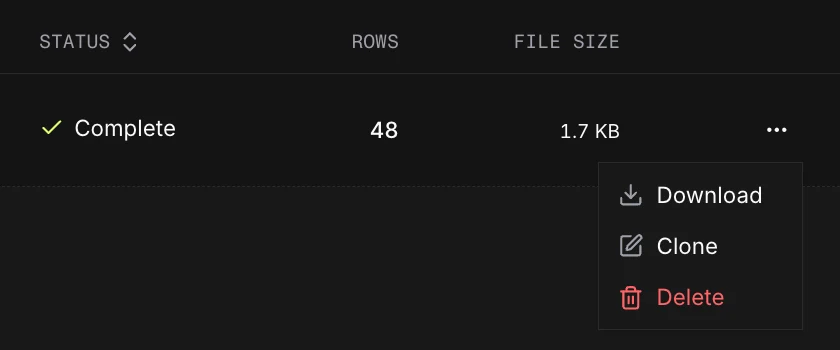
Open an export's actions menu (⋯):
| Action | When it's available | What it does |
|---|---|---|
| Download | Complete exports, for 90 days | Downloads the file |
| Clone | Complete or Failed exports | Opens the dialog with the same settings, so you can adjust them and queue a new export |
| Re-run | Failed exports | Queues a new export with the same settings. The failed one stays in the list. |
| Delete | Complete or Failed exports | Permanently removes the export and its file. This can't be undone. |
Files expire 90 days after the export is created. After that, Download is unavailable. Clone the export to create a new file.
Each time you select Download, the app creates a fresh download link that's valid for 15 minutes.
File format
An export is a gzip-compressed file of newline-delimited JSON (.ndjson.gz). Each line is one assessment. Here's one record, formatted for reading:
{"id": "…","ts": "2026-09-30T14:02:11Z","sid": "…","ip": "203.0.113.24","cc": "US","vpn": true,"proxied": false,"anon": true,"rdp": false,"dch": false,"ai_agentic": false,"ai_crawling": false,"ai_operator": "","complete": true,"service": "PROTON_VPN","cpd": ""}
| Field | Type | Meaning |
|---|---|---|
id | string | The assessment ID |
ts | timestamp (RFC 3339) | When the assessment was made |
sid | string | The name of your Monocle application |
ip | string | Visitor IP address |
cc | string | Visitor country (ISO code) |
vpn | boolean | Traffic came through a VPN |
proxied | boolean | Traffic came through a proxy |
anon | boolean | Traffic is anonymous |
rdp | boolean | Traffic came from a remote desktop session |
dch | boolean | Traffic came from datacenter or hosting infrastructure |
ai_agentic | boolean | Traffic came from an AI agent |
ai_crawling | boolean | Traffic came from an AI crawler |
ai_operator | string | The AI operator, when Spur identifies one. Empty otherwise. |
complete | boolean | Whether the Monocle process completed fully. false means a higher chance of a false positive or negative. |
service | string | The VPN or proxy service tag Spur identified, if any |
cpd | string | Customer-provided data you passed in when loading Monocle, truncated after 1,024 characters |
To read it:
gunzip -c export.ndjson.gz | head -3gunzip -c export.ndjson.gz | jq -r 'select(.anon) | .ip' | sort -u
Related
- Assessment: the assessment object and its fields
- Explorer: investigate traffic in the app before exporting